
Context
Users of the TRS console manage a range of support tasks, including identity verification activities introduced as part of the move to GOV.UK One Login for Access your teaching qualifications. We used this task to explore approaches to task visibility, ownership and management that could be applied more widely across the TRS console.
If a user cannot complete a support task in a single session, they may need to pause work and return to it later. This may be because further information is needed, the task requires follow-up outside the TRS console, or the user needs to step away from the task for other reasons.
Before this work, there was no way to indicate that a task had been started or was actively being worked on, or who was currently working on it. There was also no way to pause and return to a task while retaining progress. In addition, there was no reliable way for users to uniquely identify or refer to individual tasks, particularly where multiple users may have similar or identical names.
Early user research carried out alongside GOV.UK One Login designs identified a set of task management needs. These needs were not specific to GOV.UK One Login, but applicable to support tasks across the TRS console. This work focused on taking these needs into design and development while wider research activity continued.
User needs
From this work, we identified the following user needs:
As a support agent, I need to be able to pause and resume tasks while I sort things out directly with users, so that my progress is not lost and other people can see that work is underway.
As a support agent or record manager, I need each task to have a unique and sequential task ID, so that I can easily find, reference, and discuss tasks when users have similar data (for example, the same name).
What we designed
Task list updates
We made some basic improvements to task visibility on the task list, starting with GOV.UK One Login support tasks and intended to be used for other support tasks.
These updates included:
Task ID data
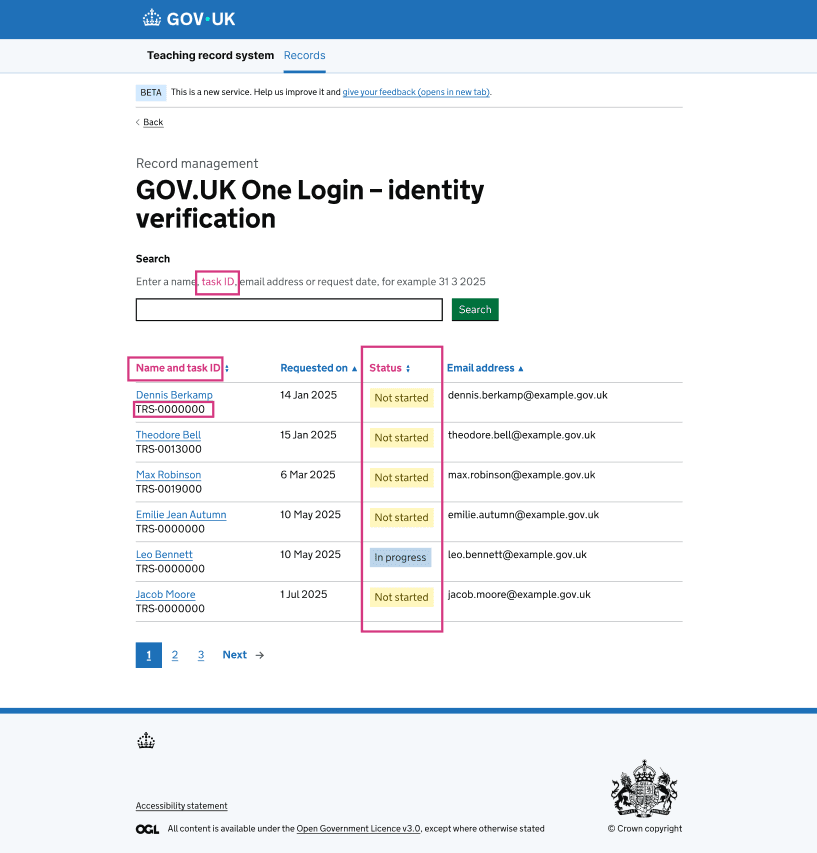
We iterated the existing ‘Name’ column to display:
- the person’s name
- a unique, sequential task ID
This supports searching, referencing, and differentiating tasks where user details may be similar.
Task status
We introduced a new ‘Status’ column showing:
- 'Not started'
- 'In progress'
This allows users to see at a glance whether a task has been started, and provides visibility to other users that work is underway.
Displaying task status on the task
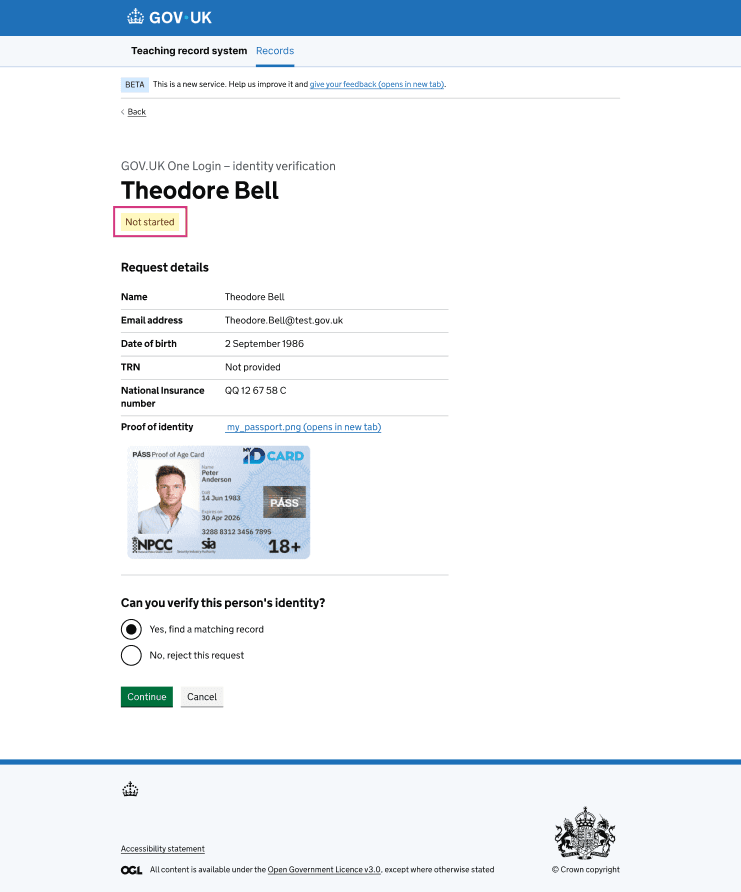
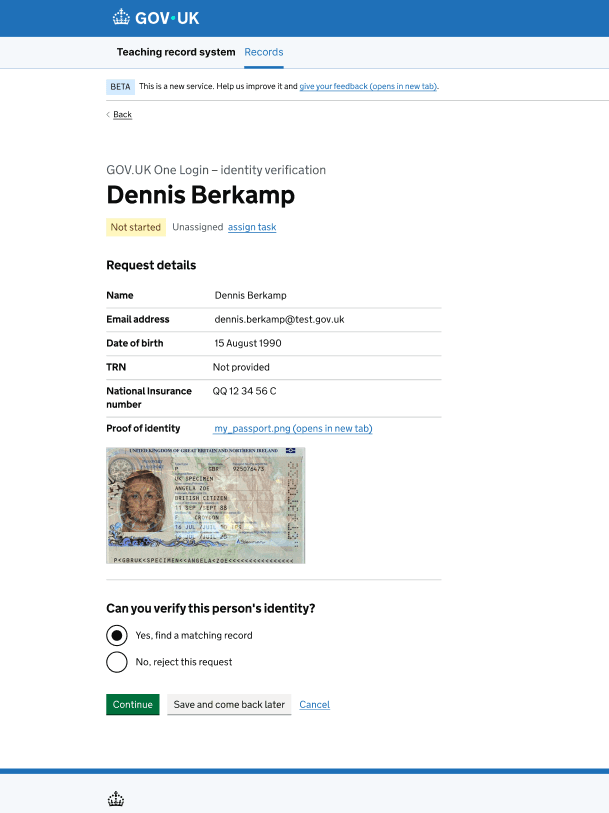
On the individual task view, the current task status is displayed alongside the task details. This shows whether the task is ‘Not started’ or ‘In progress’ when a user opens it, reinforcing consistency between the task list and task view.
Pausing and resuming tasks
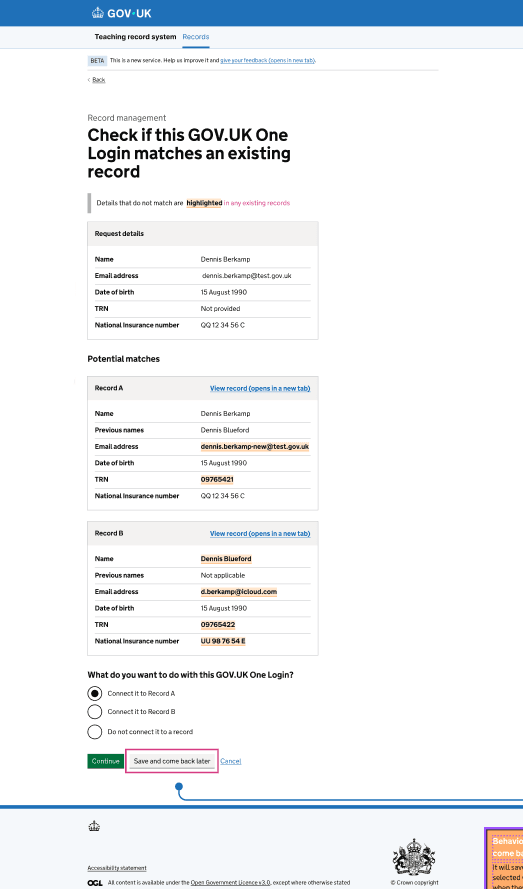
To support tasks that require time away from the console, we introduced a Save and come back later pattern within the task journey (initially implemented in the GOV.UK One Login identity verification flow).
When a user selects ‘Save and come back later’:
- the task status is updated to ‘In progress’
- the user can safely exit the task
When returning to a task that was exited using this option:
- the user is taken to the first page of the task journey
- any previously selected radio button choices are saved
- the task continues to show as ‘In progress’ in both the task list and task view
This allows users to pause work on a task and return to it without losing progress, while clearly signalling to others that the task is being worked on.
Task ownership and visibility (iteration A)
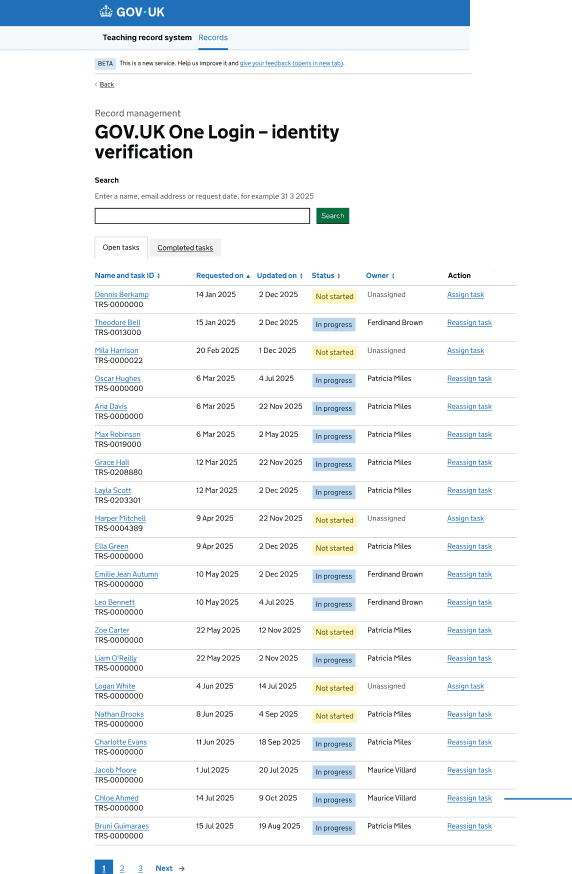
In the first post-MVP iteration, we introduced task ownership concepts to prevent multiple users working on the same task at the same time.
On the task list, users can see:
- whether a task is assigned or unassigned
- the current task owner
- an ‘Assign task’ or ‘Reassign task’ action, depending on ownership
- when the task was last updated
In this iteration, we also removed the email address column.
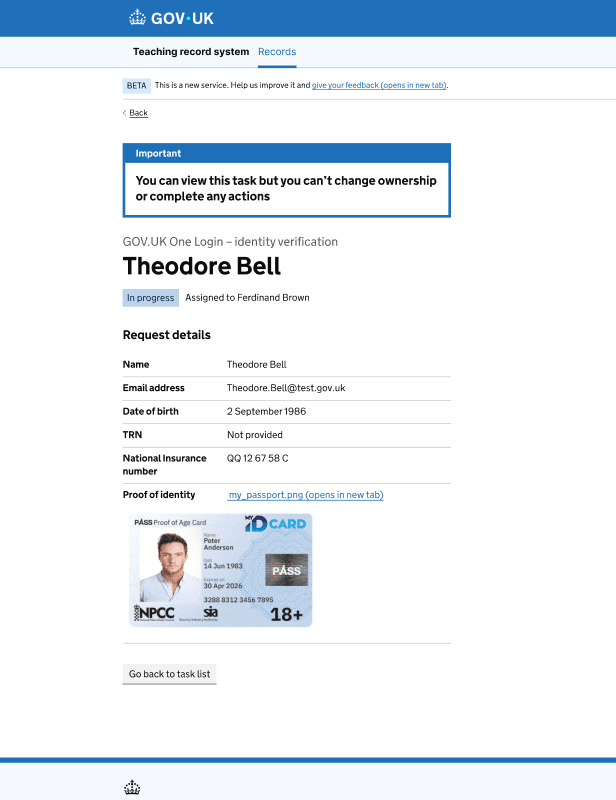
On the task view, users who own the task can continue and complete actions.
Users who do not own the task can view task details but are prevented from completing actions or changing ownership.
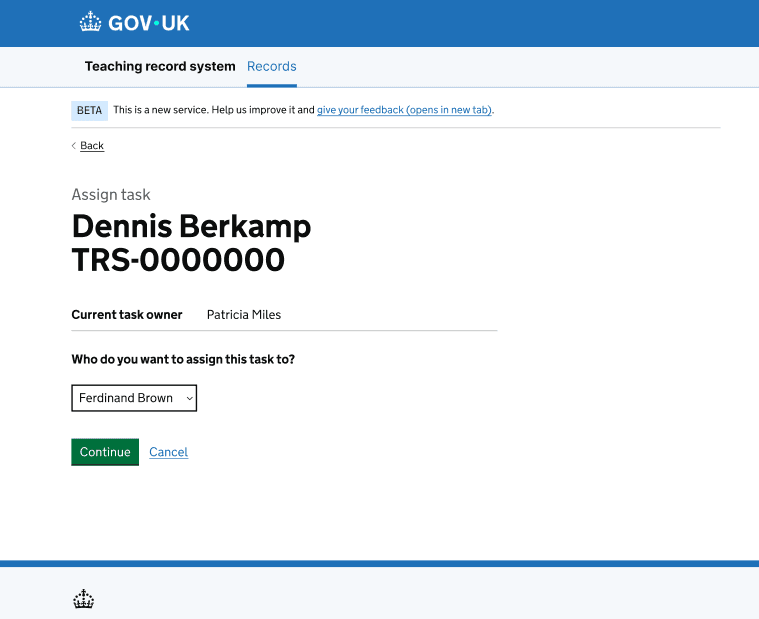
This iteration also included an Assign task page, where users can assign or reassign ownership of a task.
Task management and allocation (iteration B)
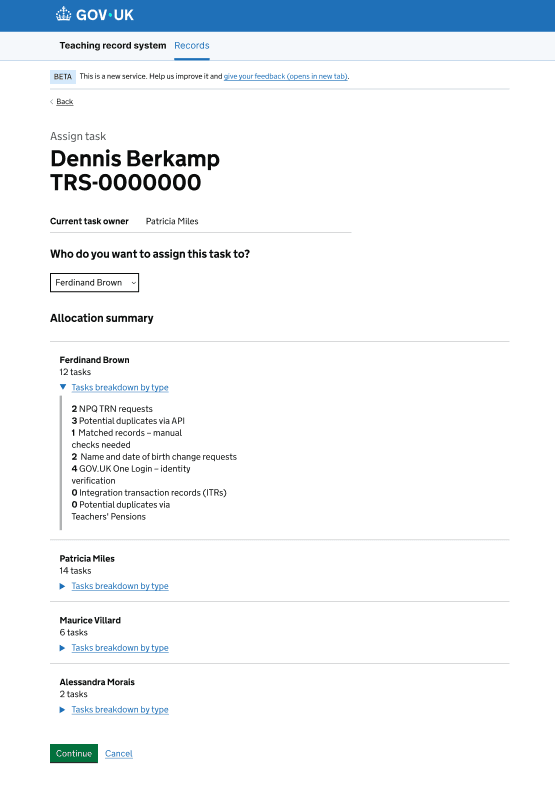
In a second iteration, we explored an alternative approach focused on task allocation and workload management for team leads.
This iteration introduced:
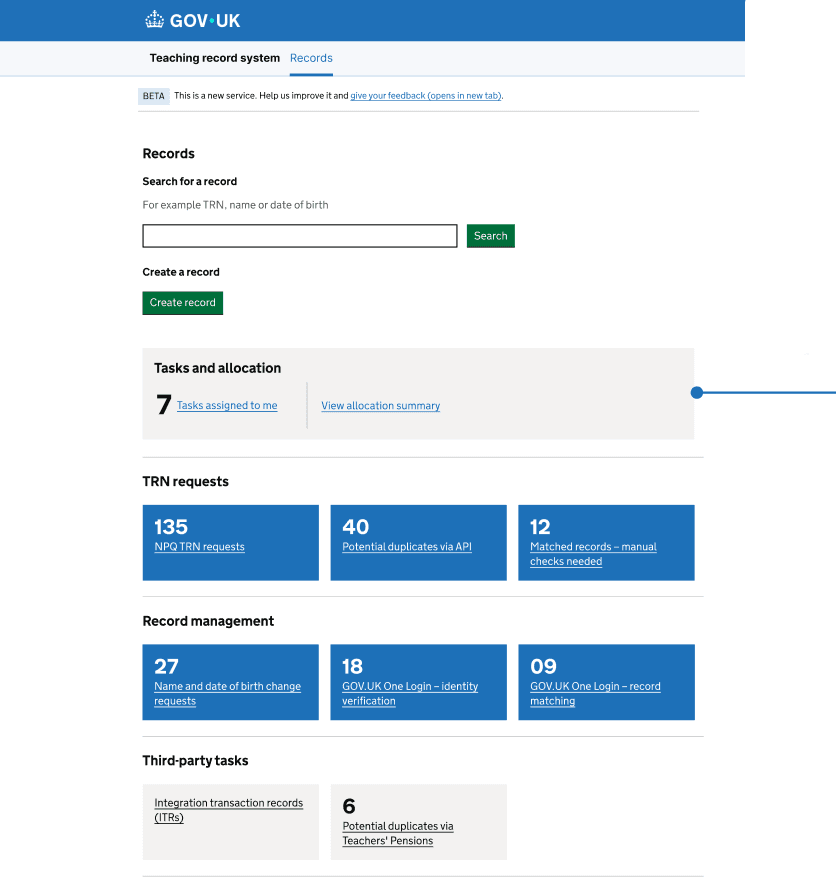
- a tasks and allocation entry point from the landing page
- open and completed task tabs to the task list, with filters for assigned, unassigned, and all tasks
- a task management view for updating task status, notes, and related Zendesk links
- a team-level allocation view, allowing tasks to be assigned or reassigned with visibility of overall workload
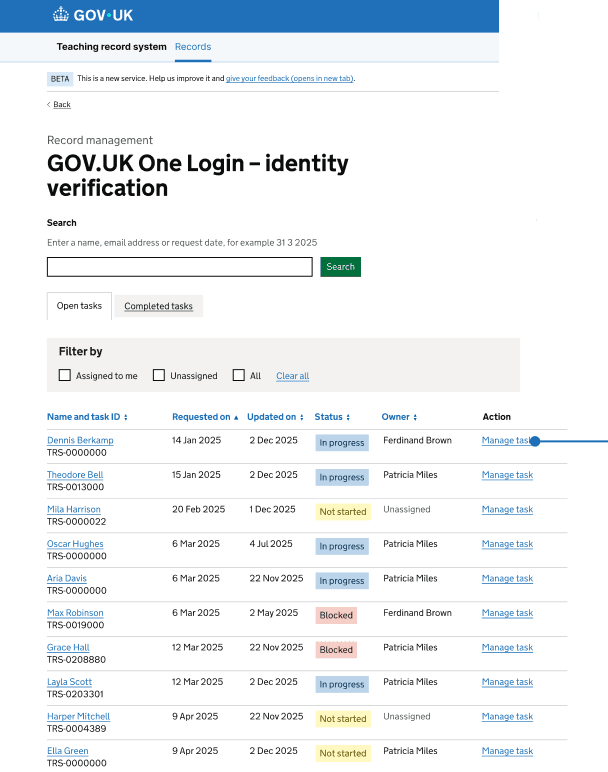
Task-level management remains available in this iteration. From the task list, users can still select ‘Manage task’ to:
- update task status
- view and add notes
- add links to Zendesk tickets
- reassign the task
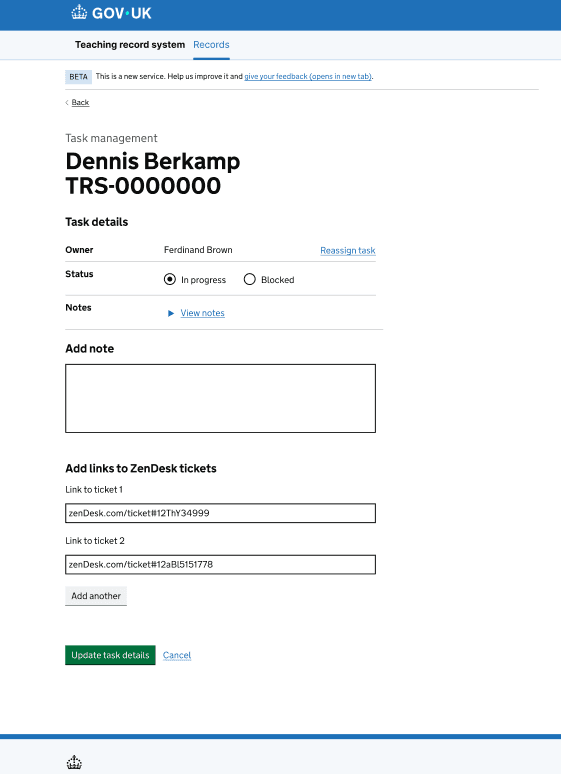
This approach separates allocation decisions from task-level actions while retaining the same underlying task-management capabilities.
What we did next
We tested these designs with users to:
- check that the proposed approaches worked as intended
- inform future iterations across the TRS console