
Context
We carried out user research in March 2026 to understand how support teams currently manage tasks and what they need from task management in the TRS console.
The research showed that while our prototypes were improvements on current ways of working, users wanted better progress tracking, clearer task communication, and more visibility of team workload.
We used these findings to iterate the designs.
What we changed
Homepage
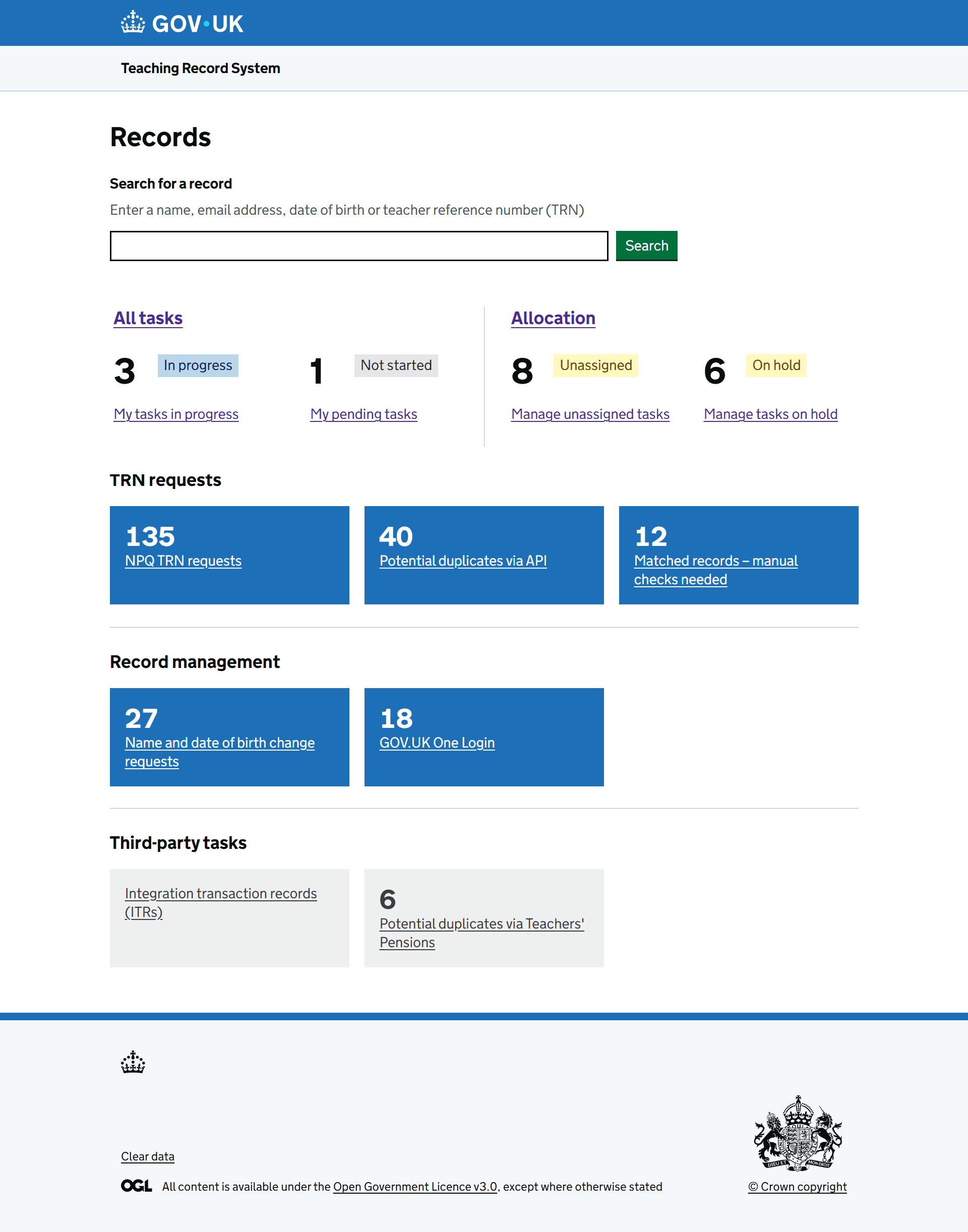
We added task management shortcuts to the homepage so users can quickly access their assigned tasks and allocation overview without navigating via record search.
This included:
- an ‘All tasks’ link which takes the user to a task list page
- separate links to the user’s tasks in progress and pending tasks
- an ‘Allocation’ link for managers which takes the user to a page showing their team’s workload
- separate links to unassigned tasks and tasks on hold
This iteration addressed user feedback that shortcuts to key views would help both agents pick up work quickly and managers monitor team capacity.
We also combined the separate tiles for GOV.UK One Login identity verification and record matching into one GOV.UK One Login task tile.
Tasks list
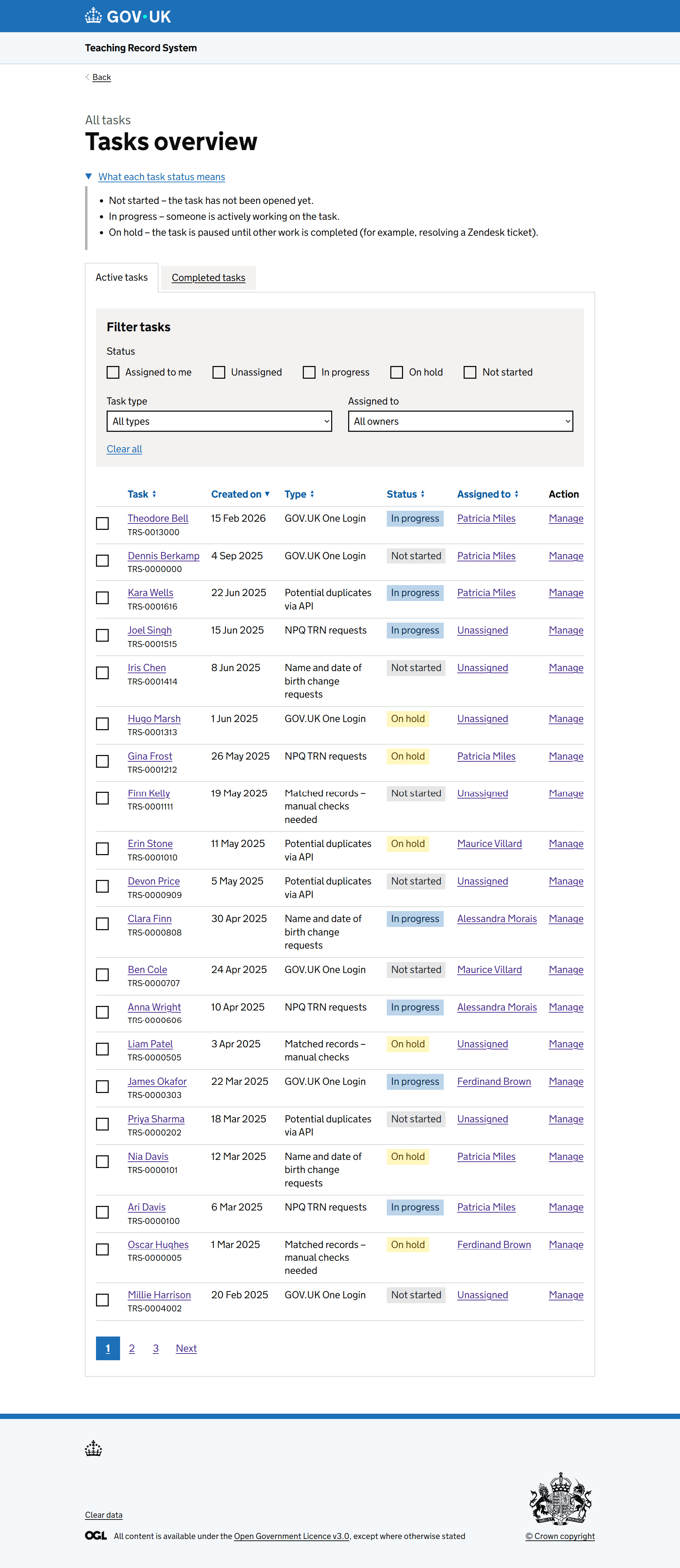
When the user clicks ‘All tasks’ on the home page, they see a task list.
There are tabs for active tasks and completed tasks.
The active tasks tab shows the task name and ID, the date it was created, the task type, status, and who it’s assigned to.
In this tab, users can filter tasks based on their status, type, and who they’re assigned to.
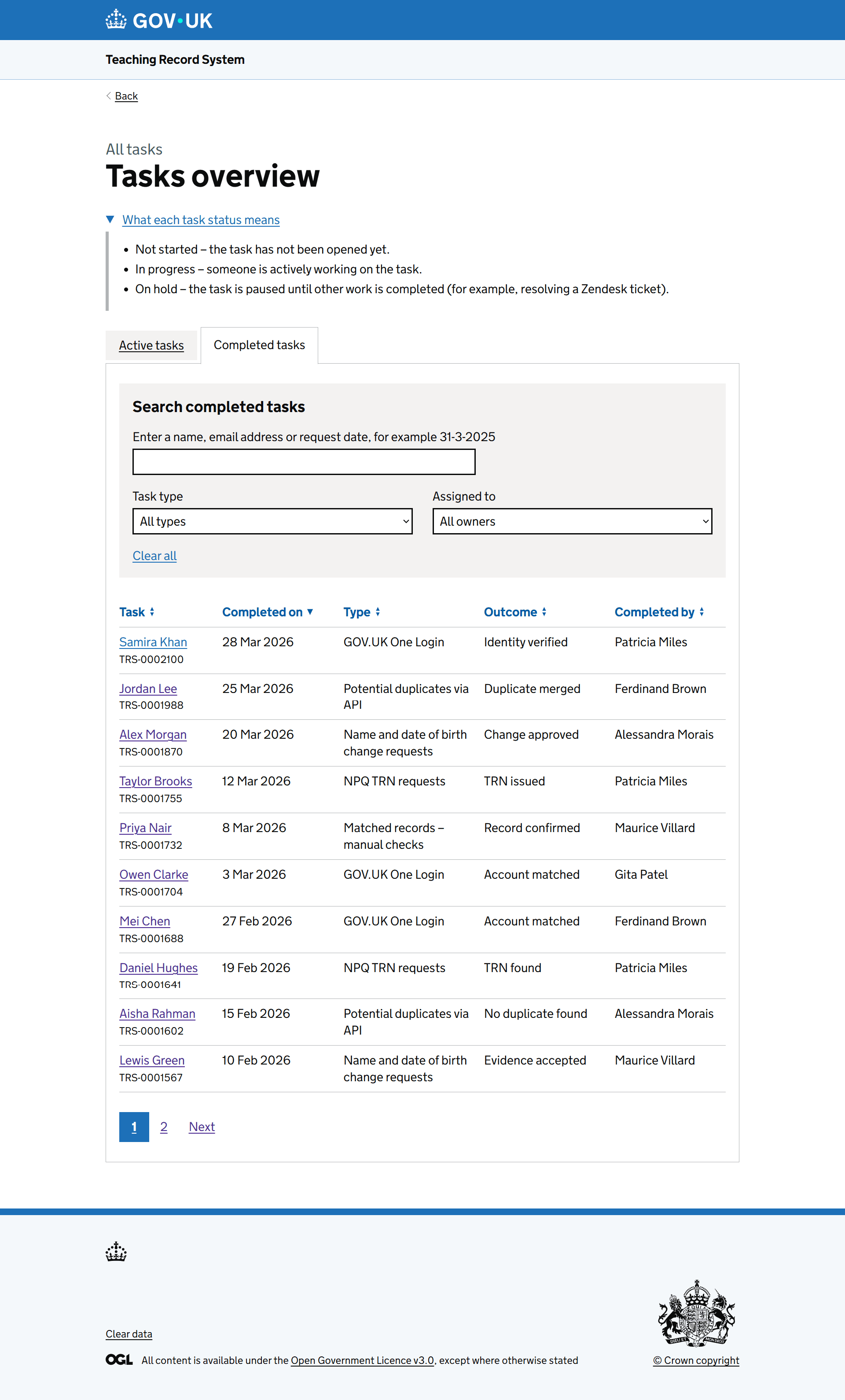
The completed tasks tab shows the task name and ID, the date it was completed, the task type, outcome, and who completed it.
In this tab, users can search for completed tasks by name, email address or request date, and filter task types and who they’re assigned to.
We’ve also included a details component explaining the meaning of each task status, as there was uncertainty around what they meant in previous user research.
Task page
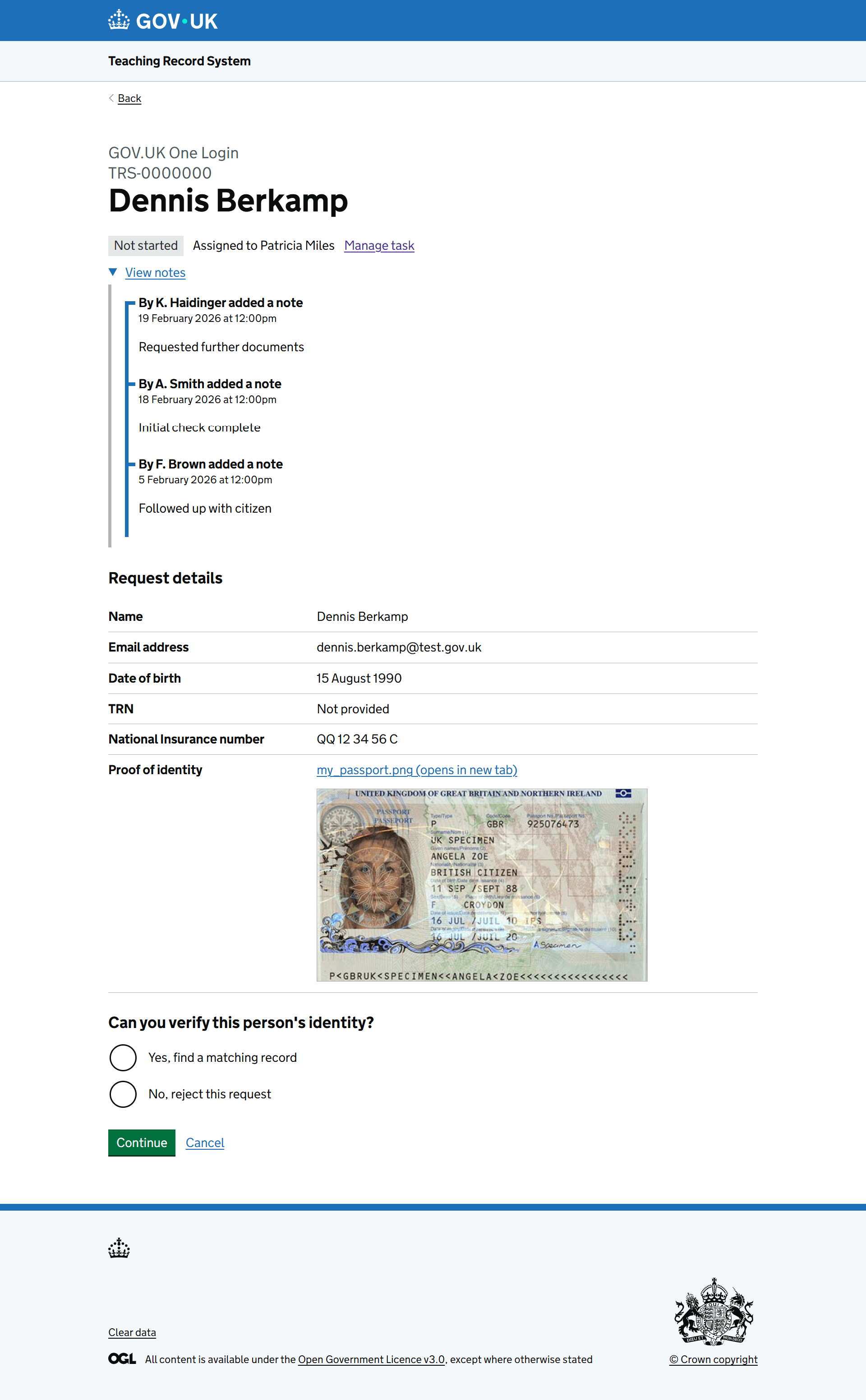
When a user clicks on a task in the task list, they see the task detail page.
We updated this page to include a 'View notes' section where users can see timestamped notes added by team members.
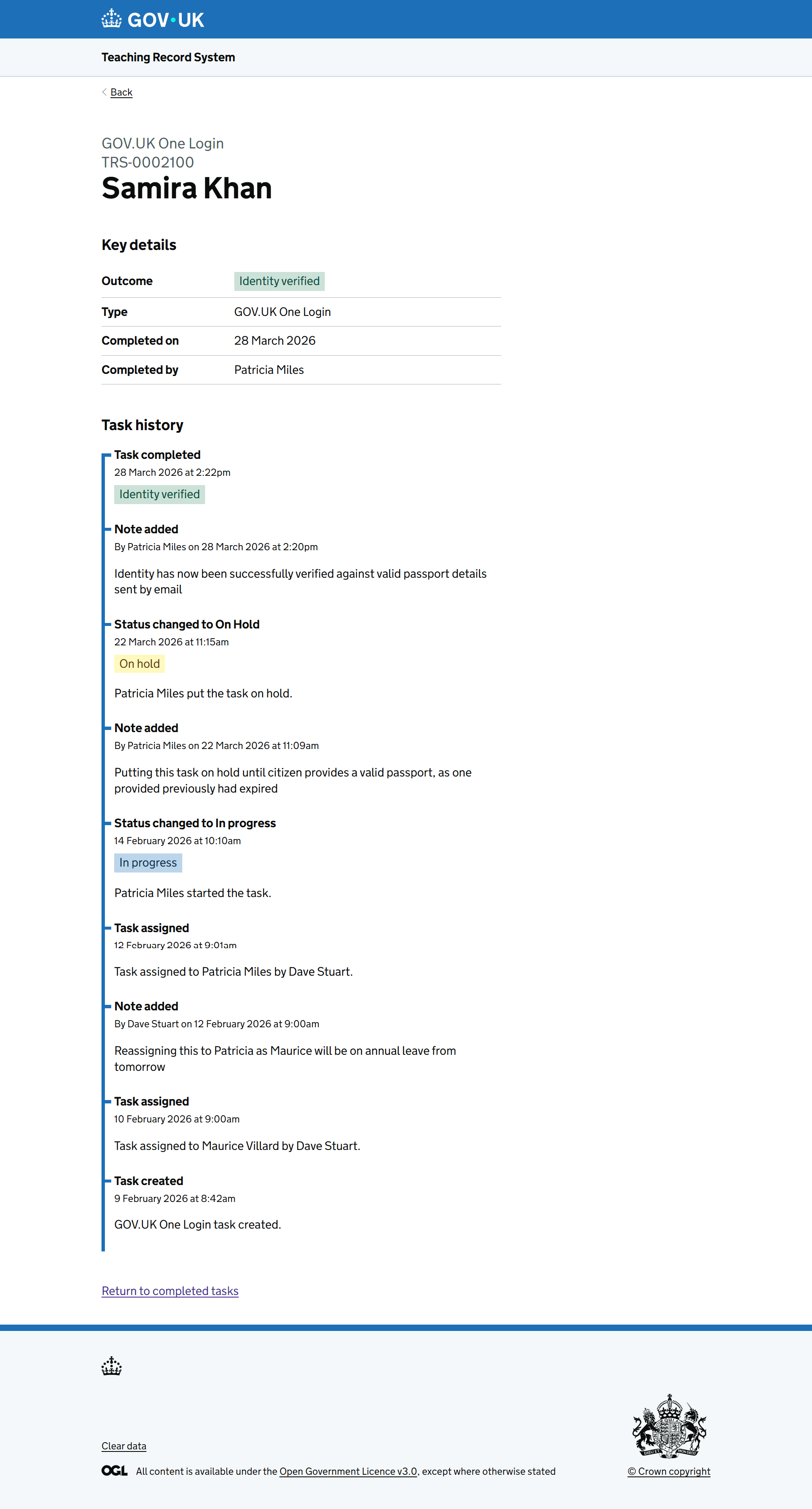
When a user clicks on a completed task, they see a page showing key details (outcome, type, completion date, and who completed it) along with the full task history showing all notes, status changes, and assignments.
Assigning and allocating tasks
Managers can assign tasks in two ways depending on their needs.
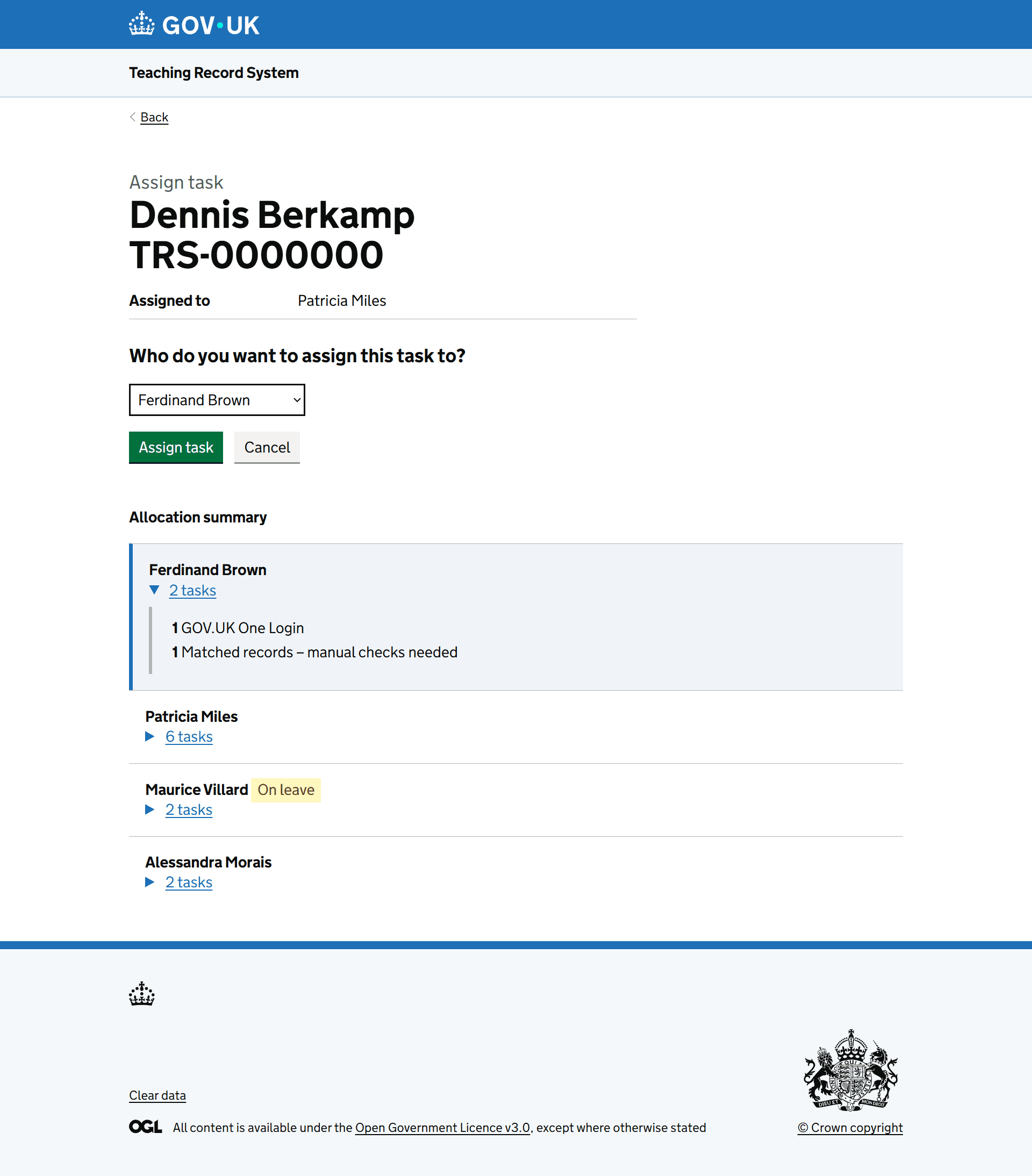
For individual tasks, managers click 'Manage' in the task row to open the task management page. Here they can change the assignee using a dropdown menu and see a summary of each team member's current workload to help with allocation decisions.
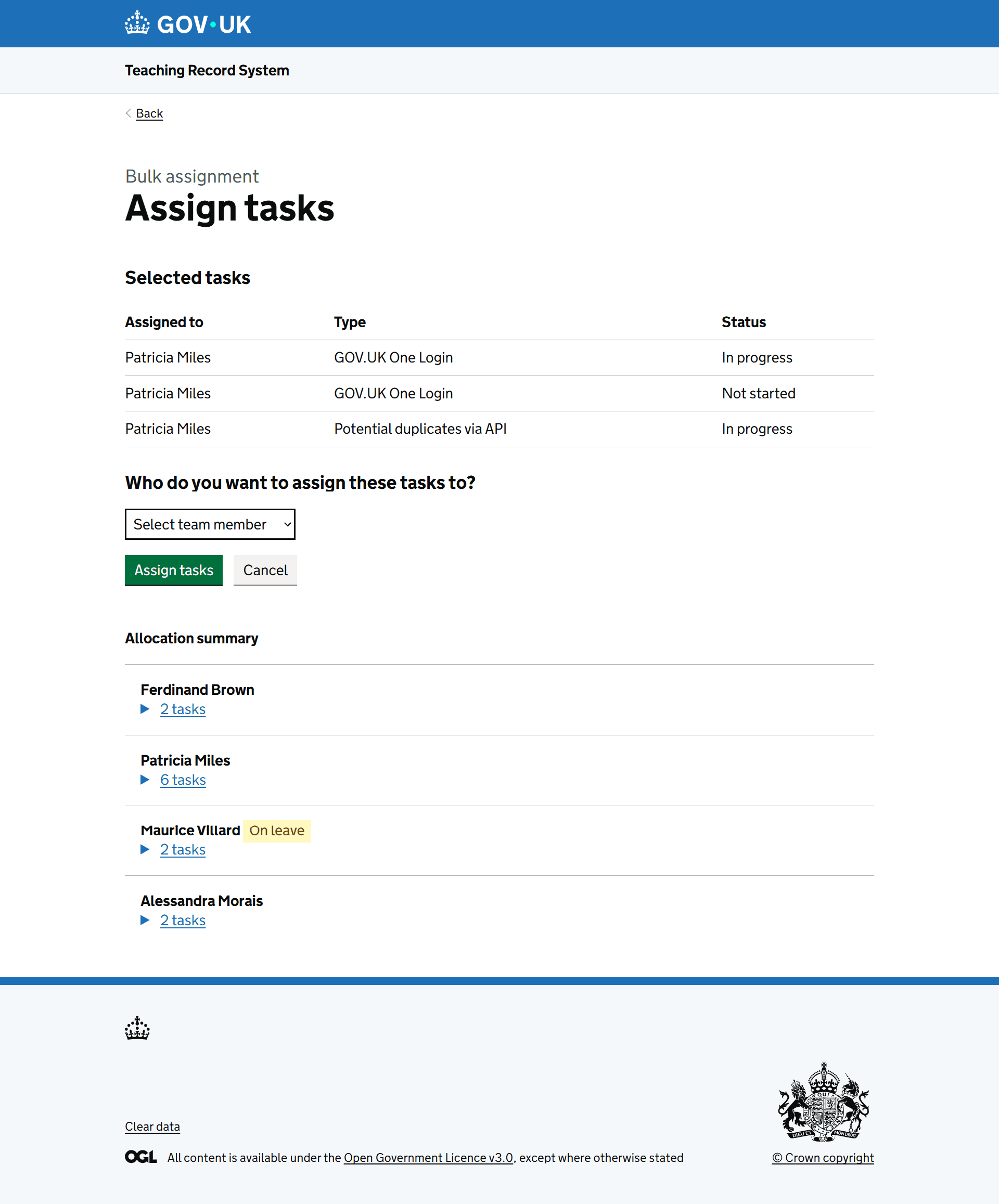
For multiple tasks, managers can select checkboxes next to task names and IDs. A bar appears at the bottom showing how many tasks are selected, with an 'Assign selected tasks' button. Clicking this takes them to a page where they can assign all selected tasks to a team member at once, with a view of each team member's workload.
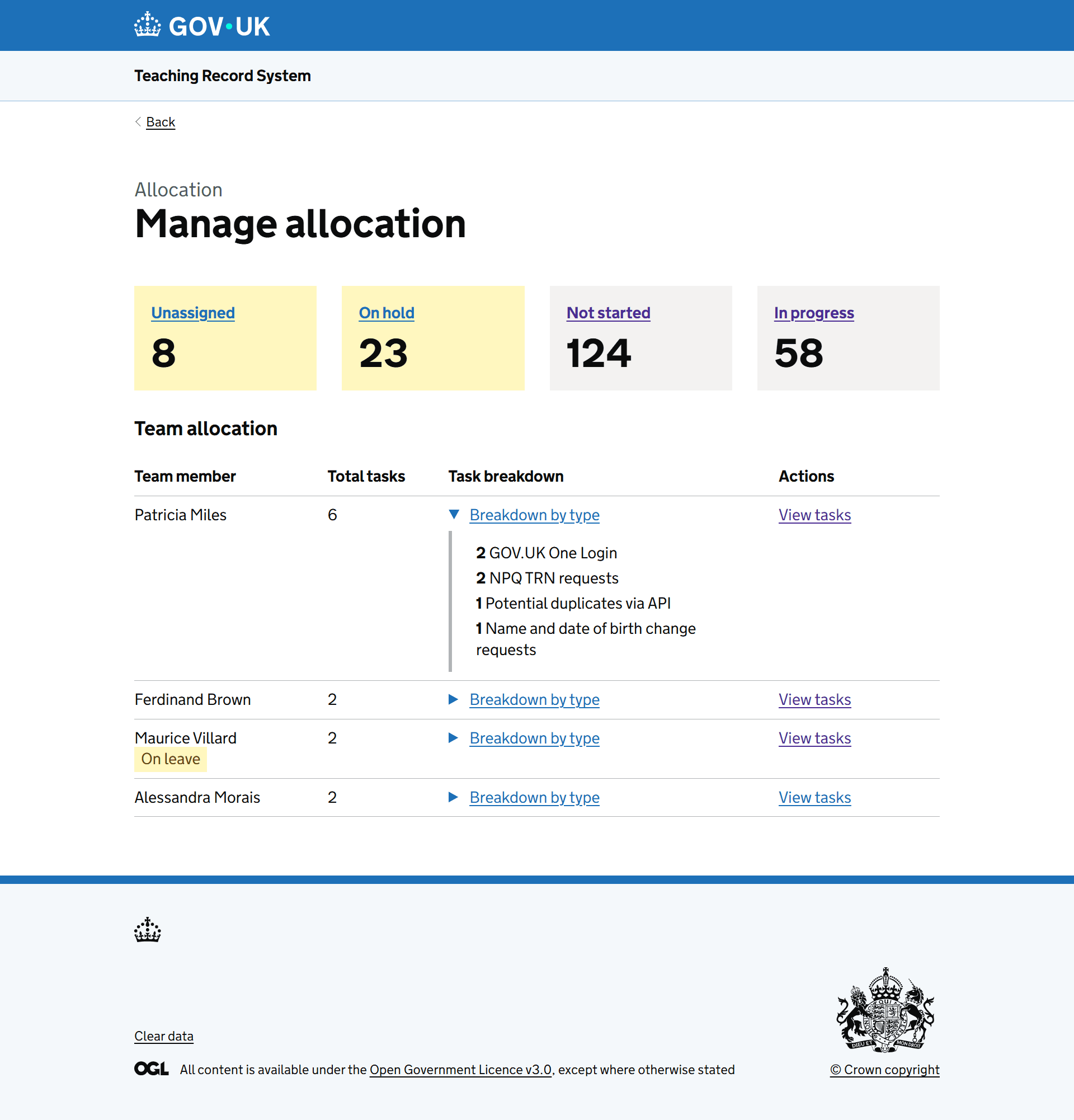
Managers can also get a team overview by clicking 'Allocation' on the homepage. This takes them to the 'Manage allocation' page, which shows tiles displaying the number of unassigned, on hold, not started, and in progress tasks. Clicking on tiles takes them to the relevant filtered task list. They can also view their team's workload with a breakdown of tasks by type.
Managing tasks
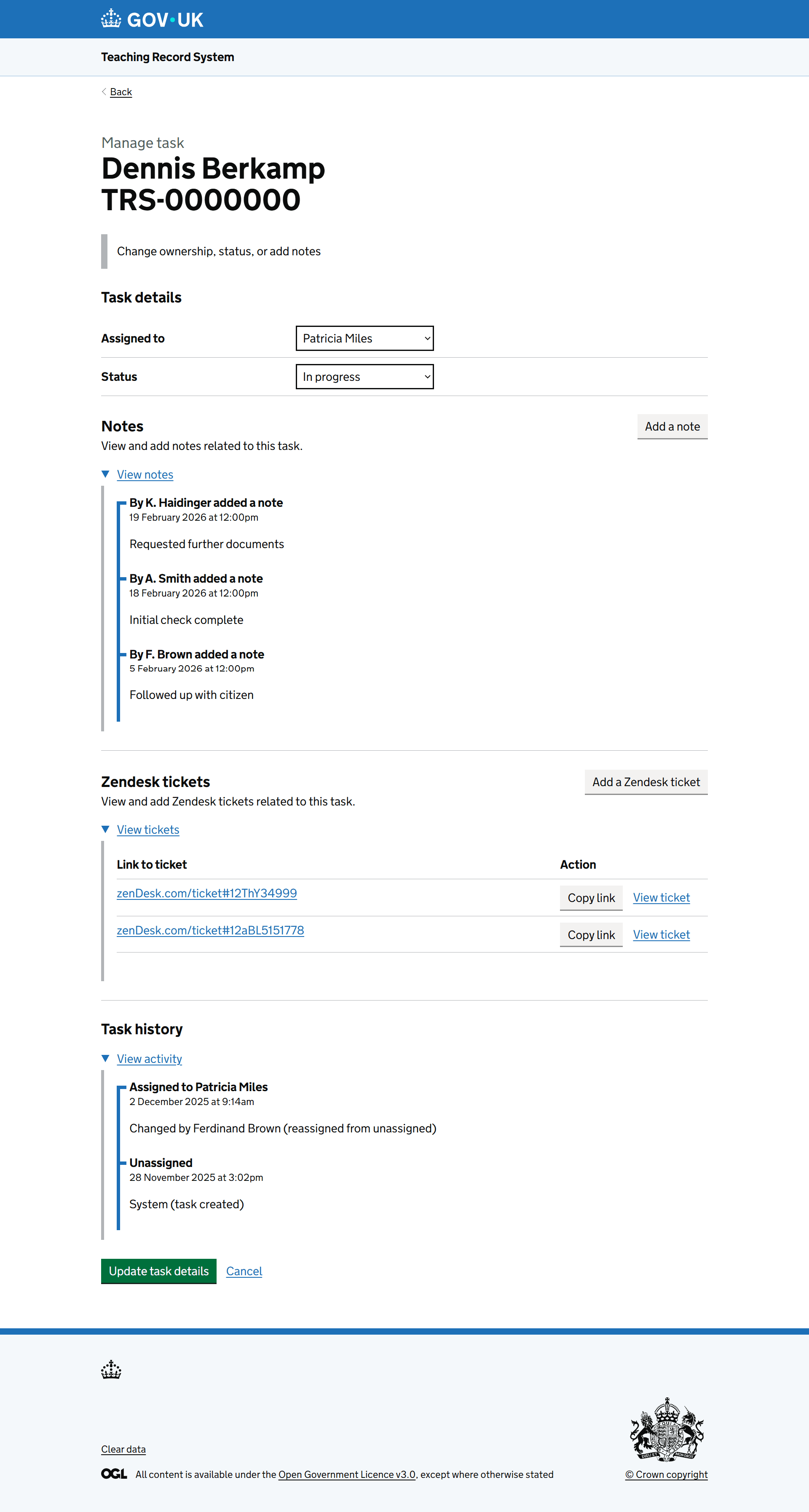
The task management page (accessed via 'Manage' on a task row) is where managers and agents can progress work.
Managers can add notes, link Zendesk tickets, and view task history. Agents can assign tasks to themselves and view notes, allowing them to pick up work without manager involvement.
This gives managers and agents a central place to communicate about tasks and progress work without switching between pages.
Language
Something that confused participants in the previous round of user research was the status ‘Blocked’ for tasks that are paused. Tasks could be blocked because a TRS user needs to gather evidence before they can continue the task.
Using suggestions from participants, we’ve changed this status to ‘On hold’, which we hope will help users’ understanding.
As mentioned earlier, we’ve also included a details component on the task list page explaining what we mean by In progress, On hold, and Not started.
What next
We’ll test these iterations with the same users from the previous research to gauge whether the changes improve the user experience.