
Context
We designed new support tasks in the TRS console ahead of the integration of GOV.UK One Login with the Access your teaching qualifications (AYTQ) service.
These designs show how TRS console users can manually verify a citizen’s identity and, where possible, connect their verified GOV.UK One Login account to an existing teaching record.
There are 7 related design areas in total. This design history covers areas 3, 4 and 5, which deal with cases where a user’s account cannot be automatically matched and must be reviewed manually.
Area 3 - identity verified and record matched
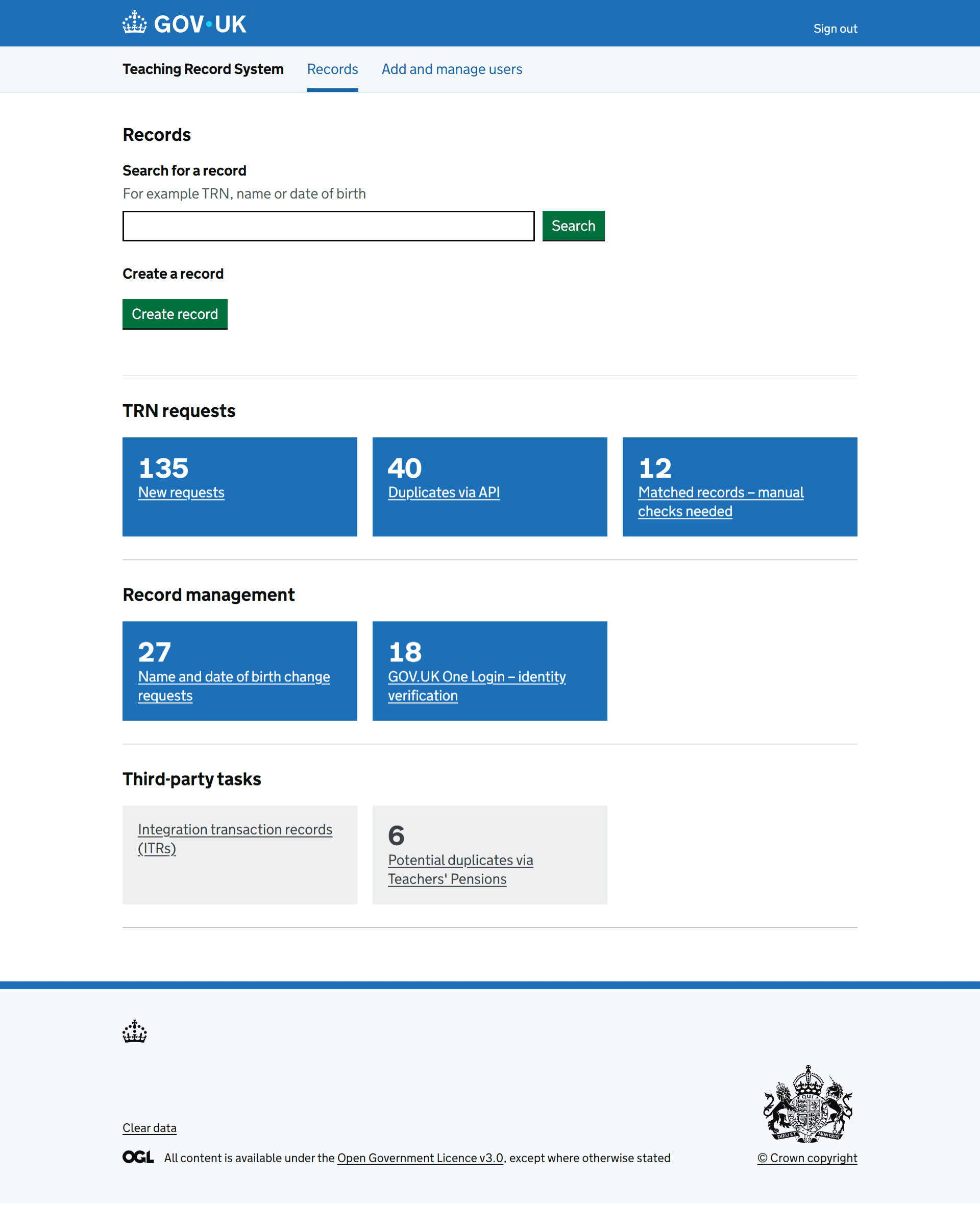
Users start from the new ‘GOV.UK One Login - identity verification’ tile on the homepage.
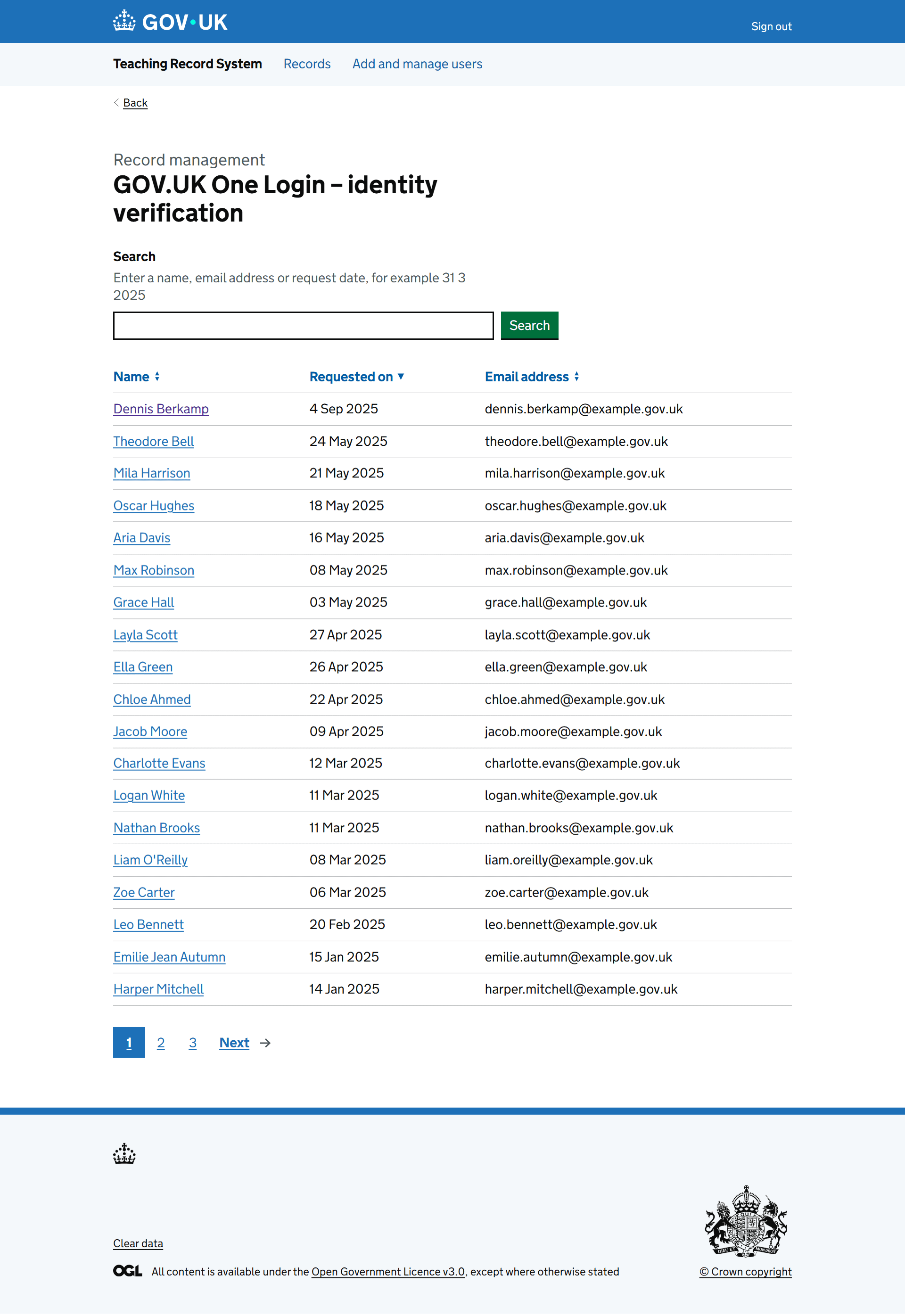
Clicking the tile opens a task list.
Selecting a citizen’s name lets the user review their personal details and proof of identity.
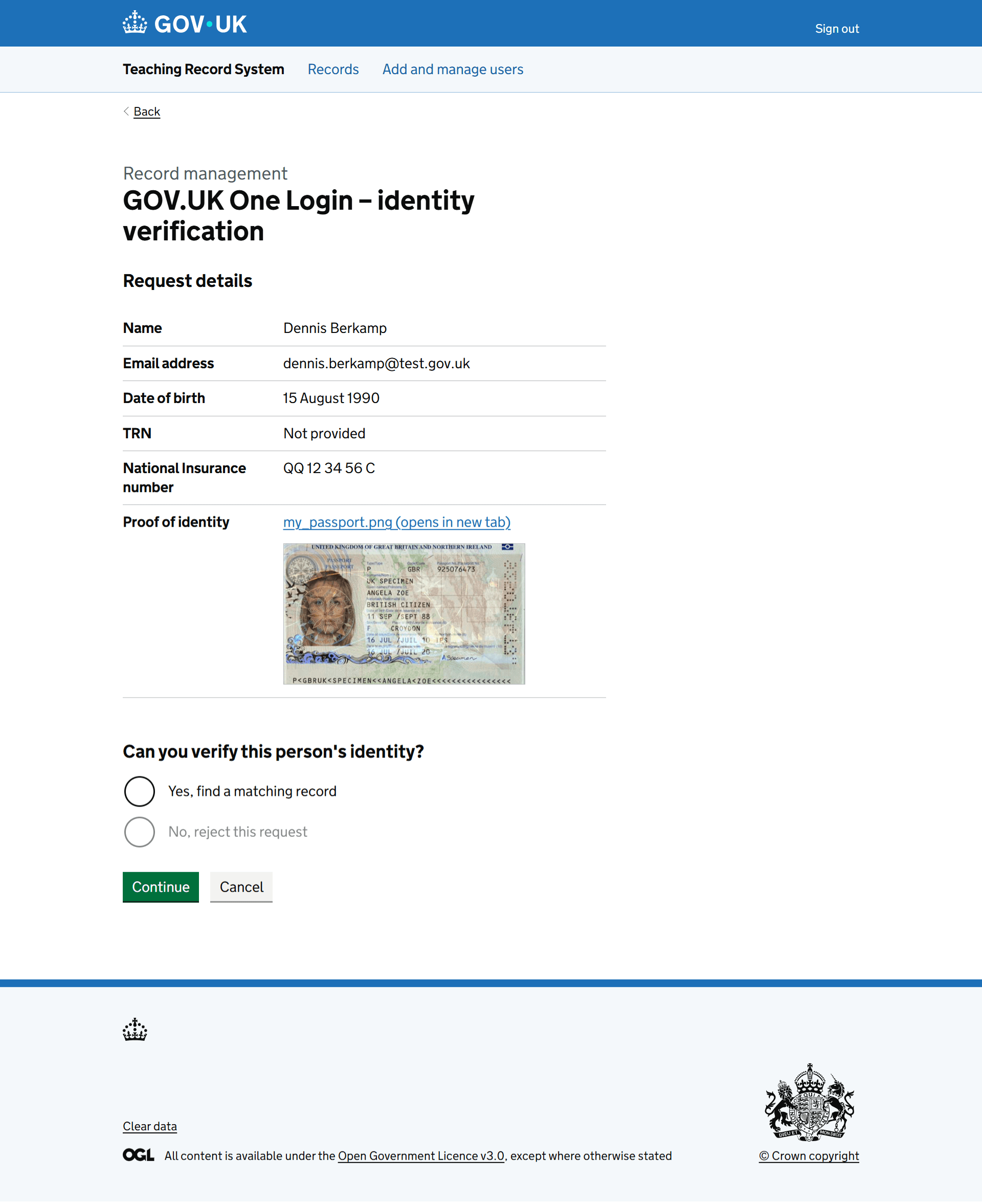
If the user verifies the citizen’s identity, the system searches for existing records that match the request details.
When a match is found, we display both the request details and the existing record in summary cards. Non-matching fields are highlighted so the user can check whether to connect the GOV.UK One Login account to the record.

If they choose to connect the account, they can review the record details and confirm the connection.
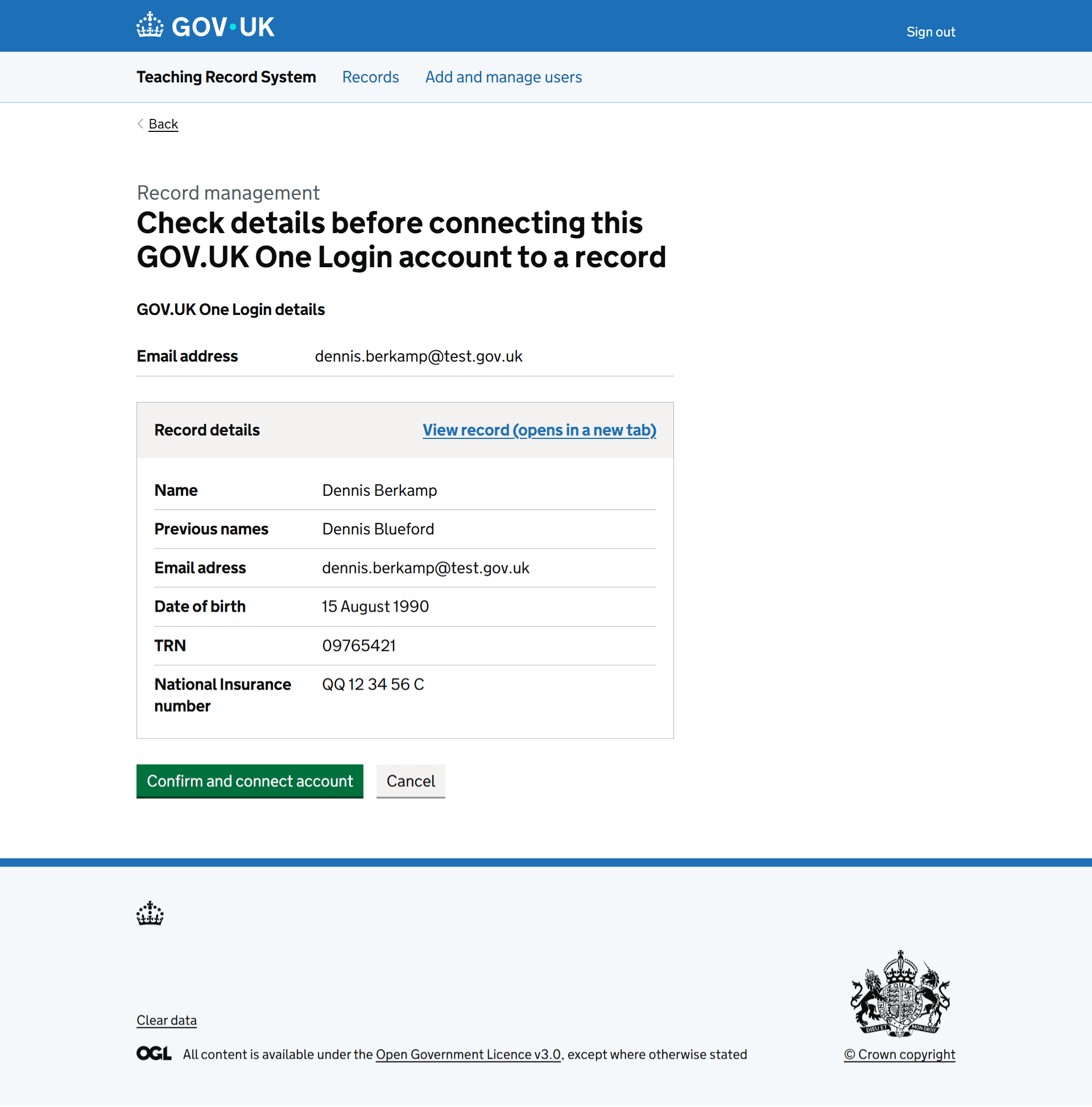
Once confirmed, they return to the list view and see a notification banner confirming the connection.
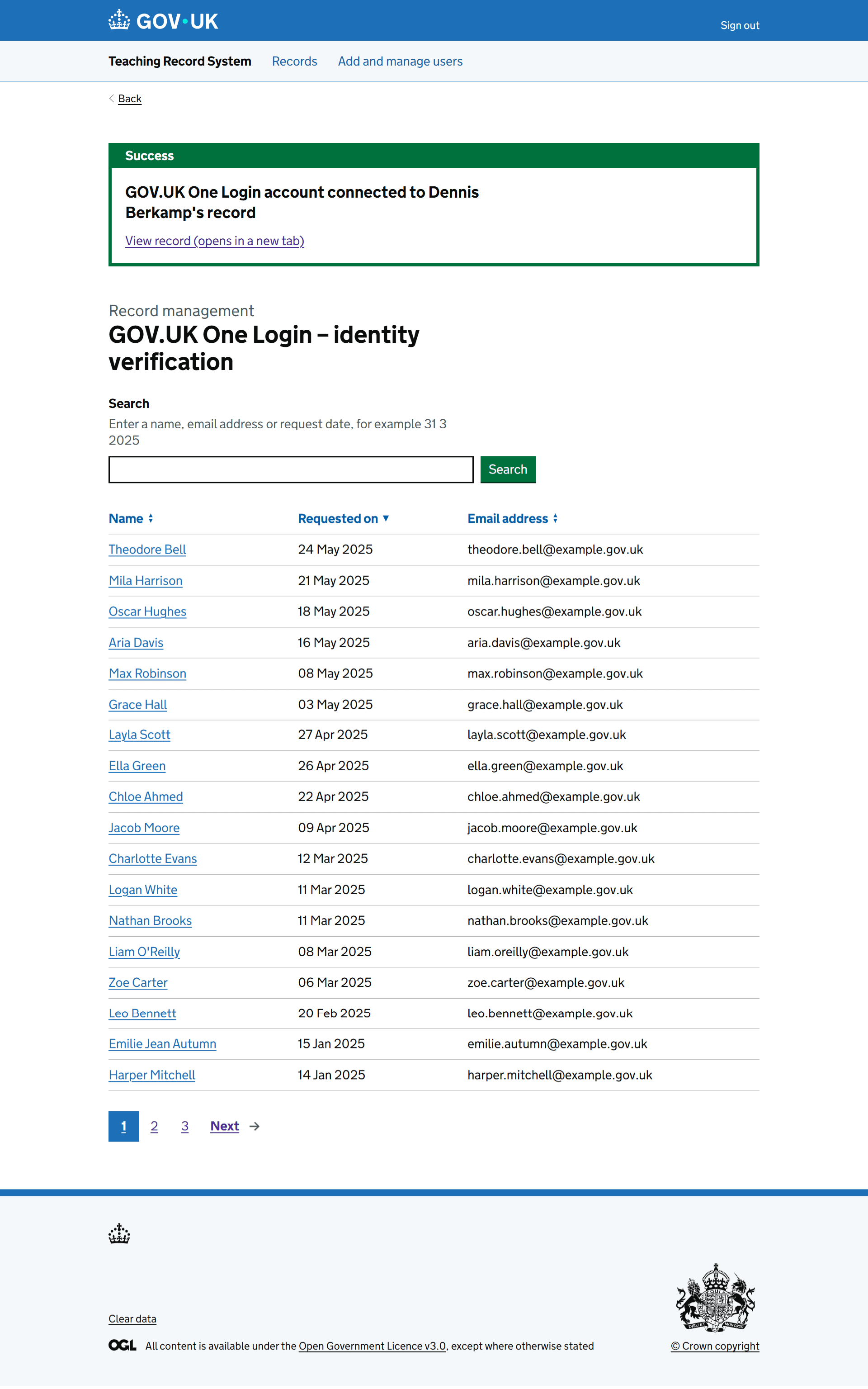
If they decide not to connect the account, they must select a reason - for example, the record does not match, there is only a partial match, or ‘another reason’, which opens a text field for explanation.

The user then checks their answers before confirming.

Once confirmed, they return to the list view and see a notification banner confirming the connection was not made.
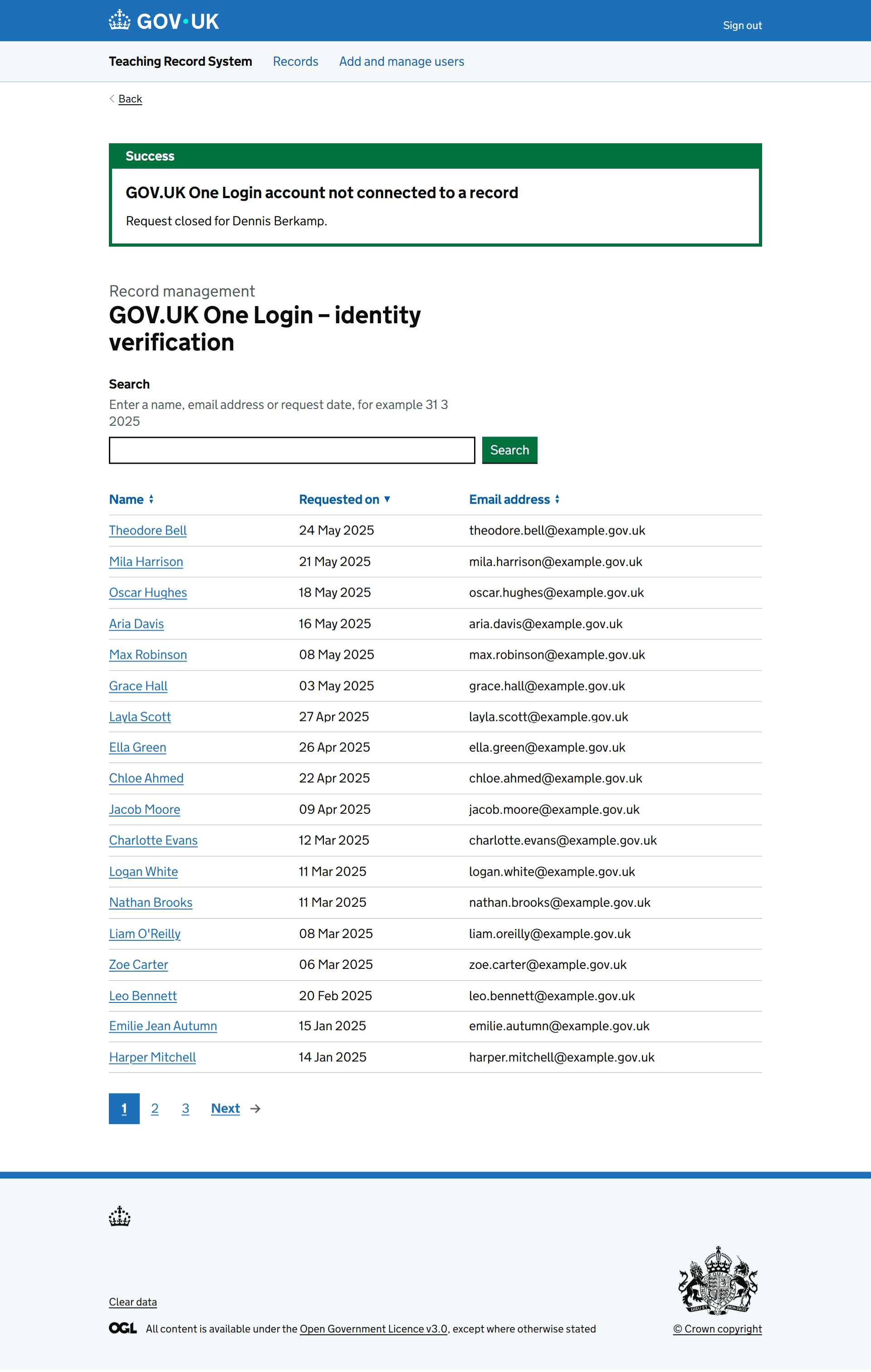
Area 4 - identity verified but no record matched
This journey follows Area 3. If, after verifying the citizen’s identity, the system cannot find a matching record, the user sees a page confirming that no record was found.
The page also shows the email content that will be sent to the citizen. It explains that their details could not be matched, advises them to check their GOV.UK One Login details, and tells them to contact us if they still need help.
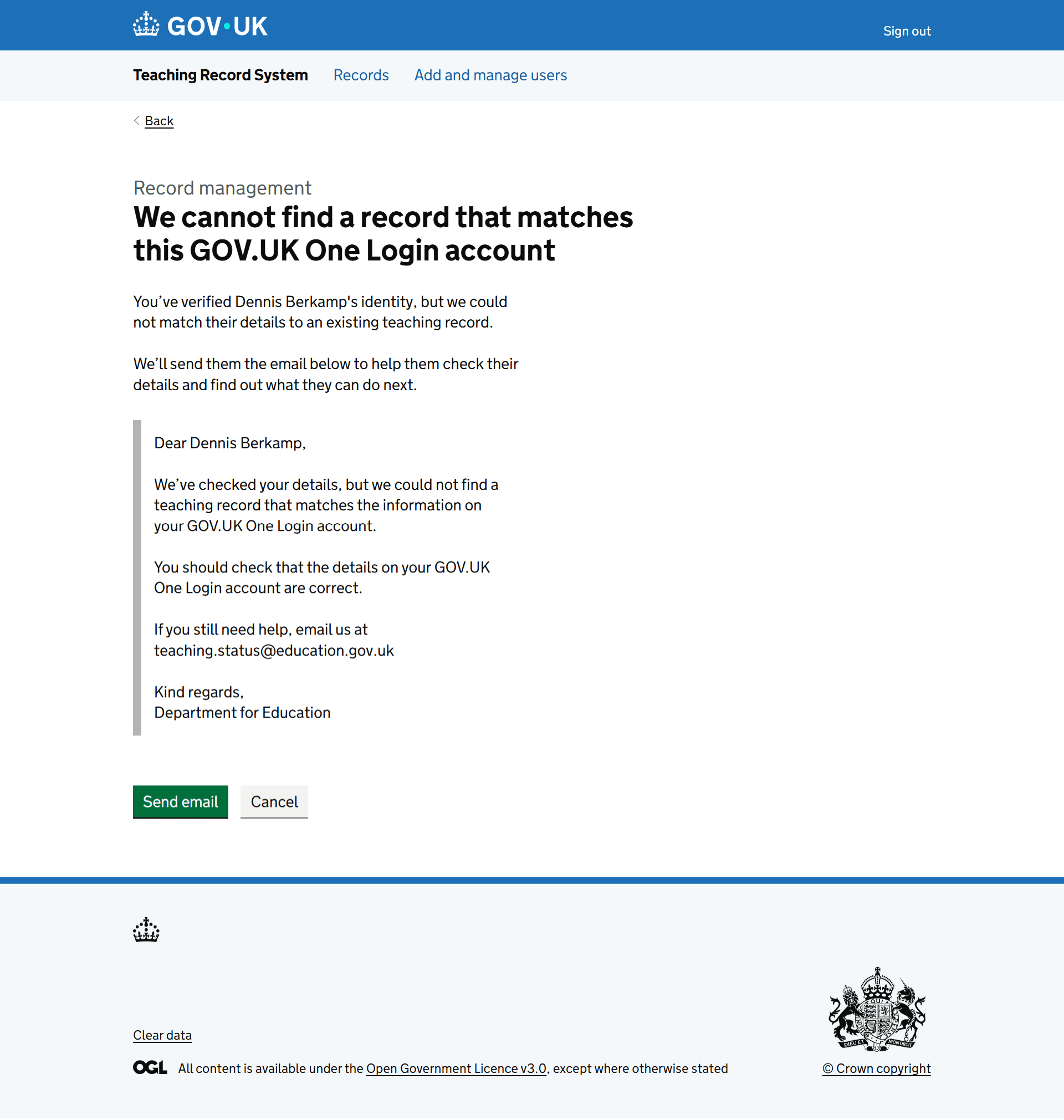
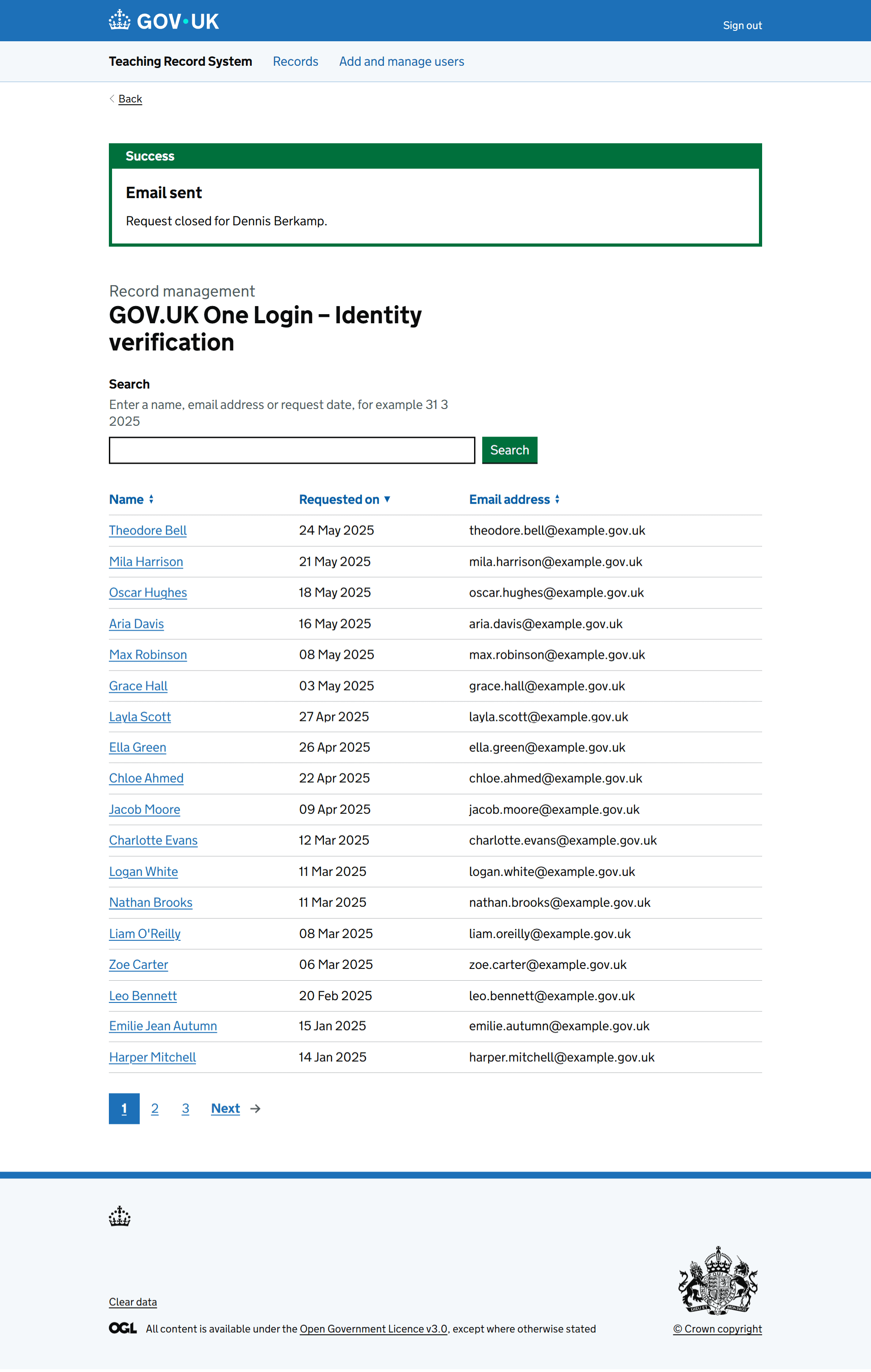
Clicking ‘Send email’ sends the message to the citizen and closes the request. The user then returns to the task list, where a notification banner confirms the email was sent and the request closed.
Area 5 – identity cannot be verified
If the user selects ‘No, reject this request’ on the identity verification page, they are taken to a page asking why the request is being rejected.
Reasons include the proof of identity not matching the request details, being unclear, the wrong type, or ‘another reason’, which opens a text field for the user to record the reason.

The user then reviews their answers before confirming the rejection.
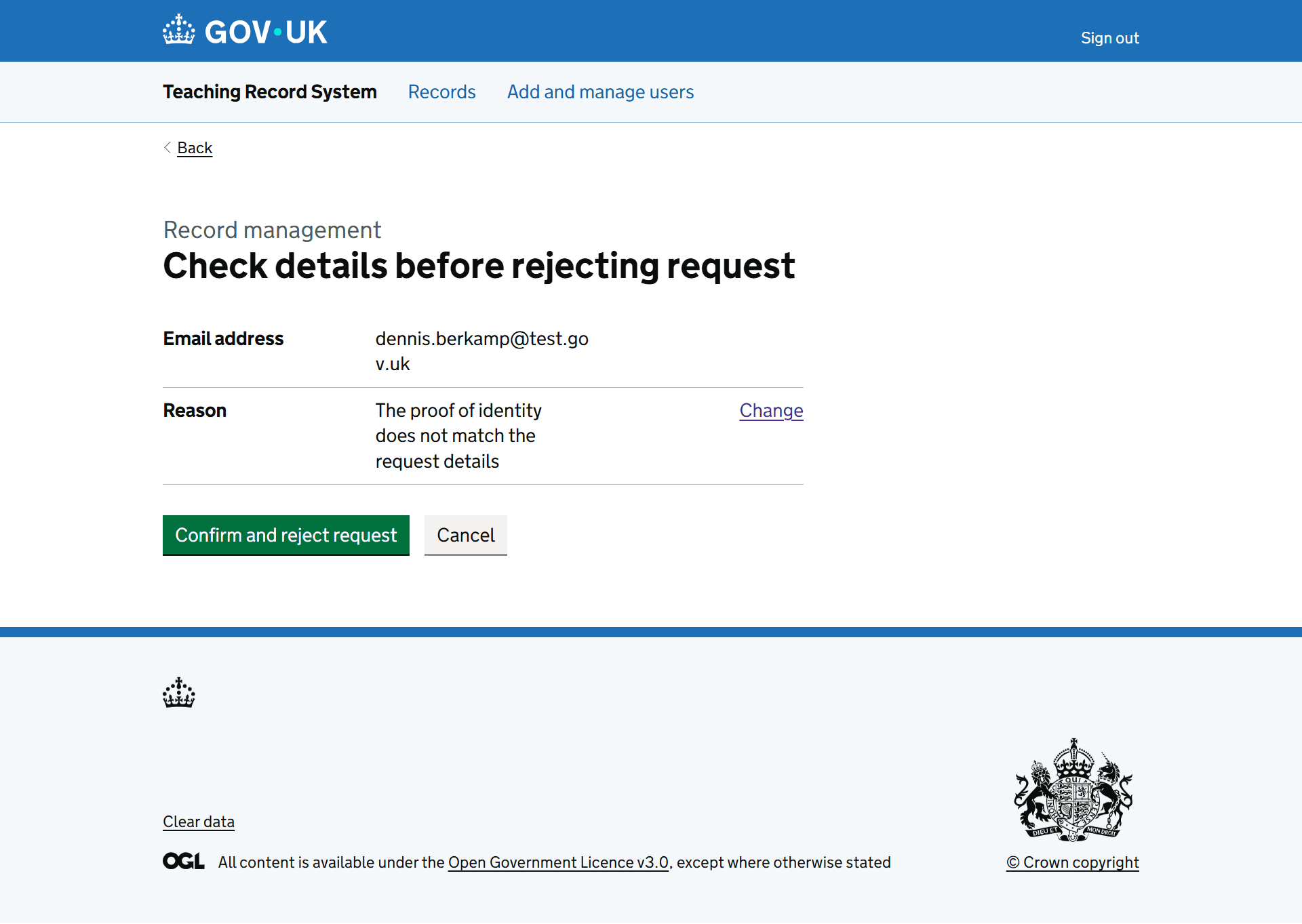
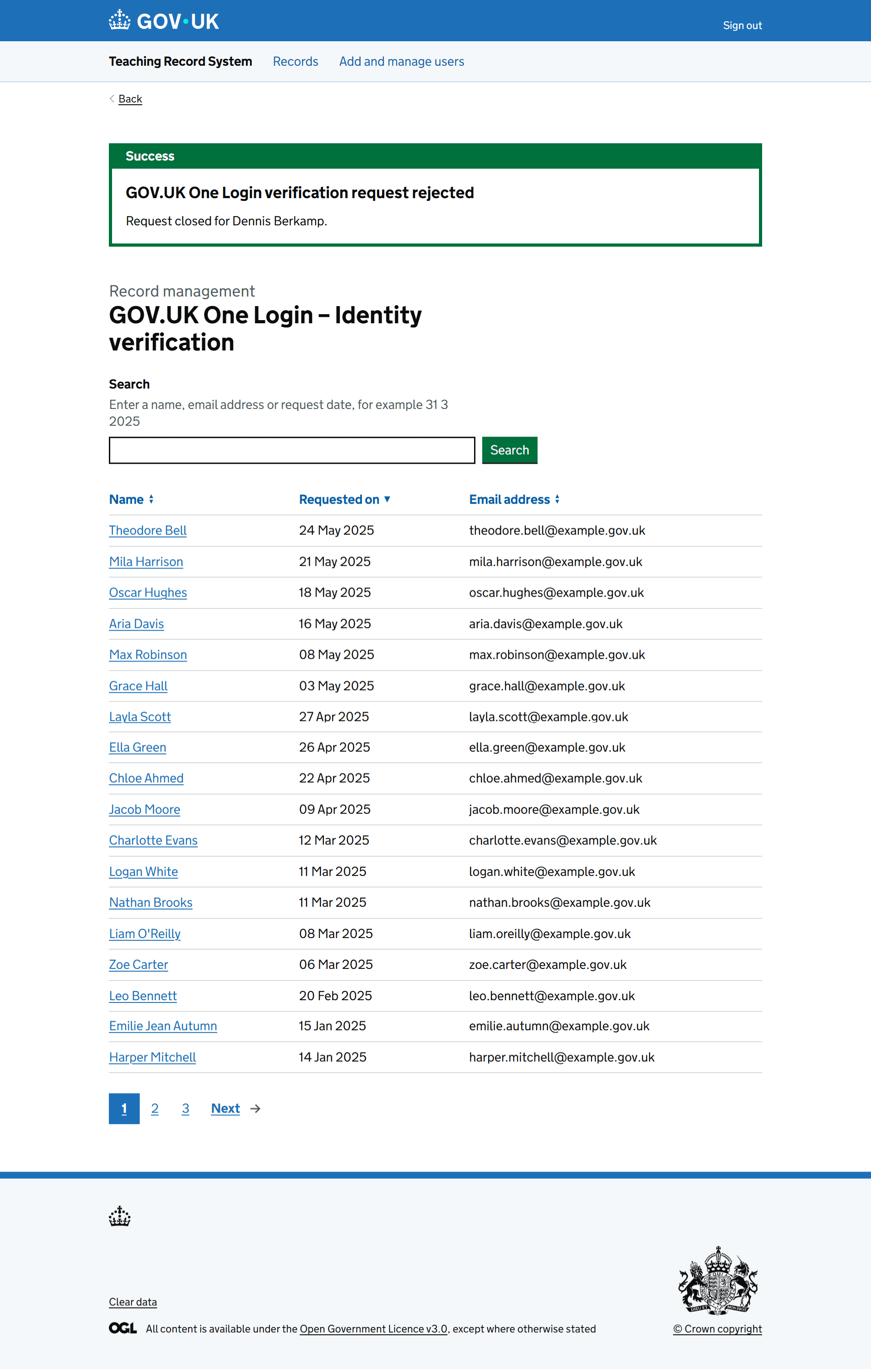
Once confirmed, they return to the task list, where a notification banner confirms the request was rejected and closed.
Iterations and design decisions
We originally showed users an extra page where they could review the identity details they had just verified. Because this repeated the same information from the identity verification page, we decided it was redundant and removed it.
We also replaced separate ‘First name’ and ‘Last name’ fields with a single ‘Name’ field on the identity verification and record-matching pages. This better reflects how data is structured in GOV.UK One Login, which does not provide names in a consistent first-and-last-name format.
We noticed inconsistent ordering of personal details (such as name, email address and TRN) across the identity verification and record-matching pages, so we standardised the layout to make the information easier to scan.
Finally, we removed the option for users to manually search by TRN when no matching record is found, as the system surfaces all potential matches automatically.
What next
These designs will go into build before we start designing areas:
- 1, which covers the identity-verified GOV.UK One Login journeys for AYTQ
- 2, which covers the AYTQ identity verification fallback journey for citizens entering their details and proof of identity
- 7, which covers the overall One Login journey structure to map how the journeys connect and prevent dead ends