Context
Task management in the TRS console supports the Operations and Support teams in managing their own tasks and monitoring and allocating work across their teams.
A key part of this work is batch assignment, which allows managers to allocate multiple tasks to colleagues at once.
Designs tested in the last round of user research included an allocation summary showing each user and their number of assigned tasks. Managers could assign multiple tasks to a colleague by selecting their name from a dropdown (select component).
However, discussions with the Support, Operations and Delivery teams highlighted a scalability issue. As the service has no role-based permissions, the dropdowns could list more than 50 users, rather than just members of the manager’s team. This makes it harder to find the right person quickly and increases the risk of assigning tasks to someone in another team.
To improve the efficiency of task allocation, we needed to ensure managers could find the right colleagues quickly.
What we changed
Following discussions on initial designs shared with Support and Operations, we agreed to bring forward an MVP of access permissions to introduce team management.
Managers can create and manage teams through the service admin, with allocation data limited to users within their own team.
This approach:
- reduces the need to scan long user lists, making task allocation quicker and less error-prone
- provides a foundation for future tailored reporting and team-specific views
- supports clearer auditing and ownership
We reviewed the proposal with Support and Operations teams and made the following changes:
- iterated the bulk assignment page to better support team-based task allocation
- introduced team management in the service admin, allowing users with the appropriate access level to add, change and delete teams
- added team assignment functionality, allowing authorised users to assign users to a team
- updated the service navigation with an ‘Add and manage teams’ item and created a Teams list page
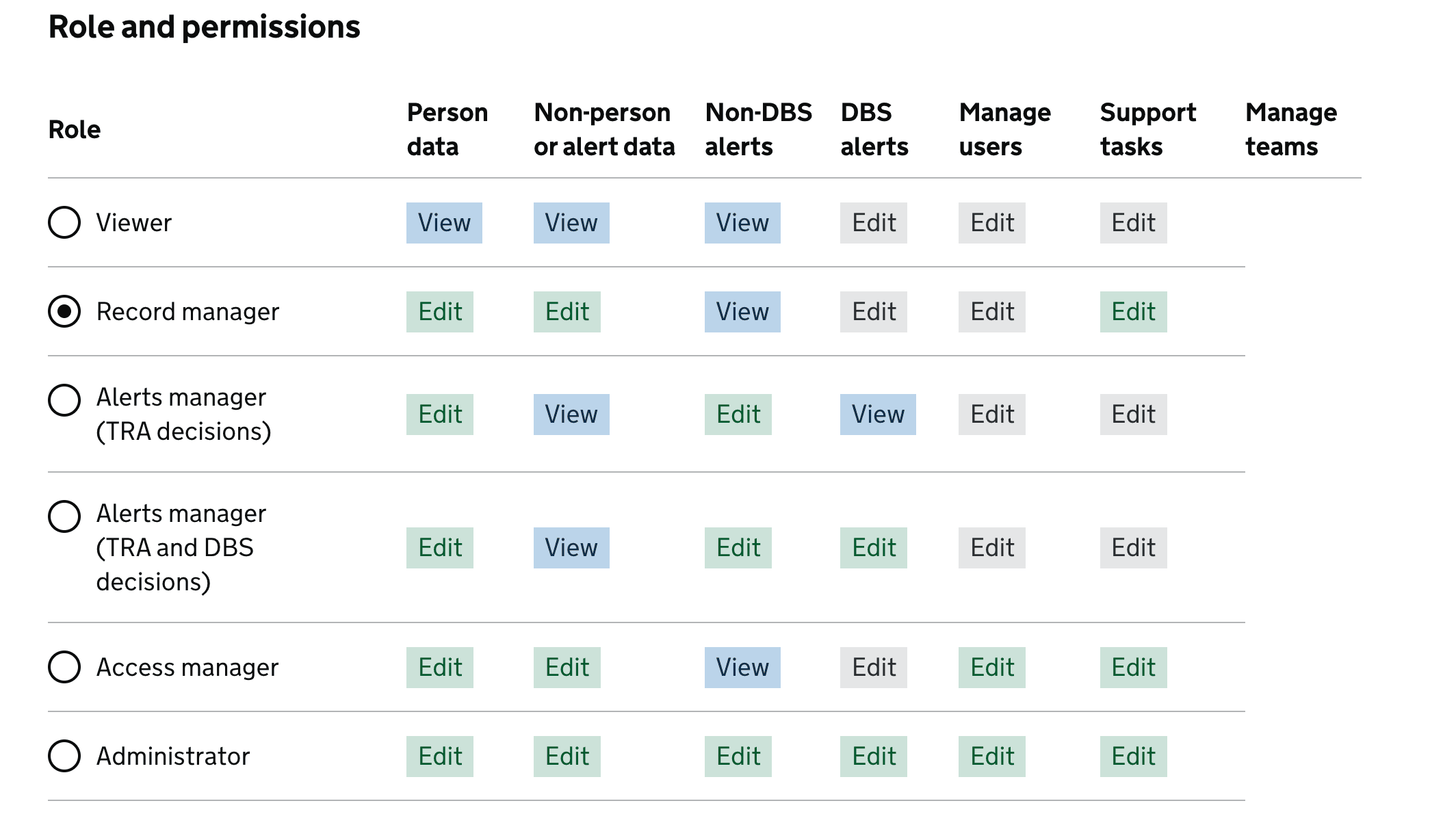
- improved the Change user details page, making visual refinements to the ‘Roles and permissions’ table to make it easier to scan and adding a ‘Manage teams’ column
- defined access rules so that only Access Managers and Admins can manage teams
Bulk assignment page
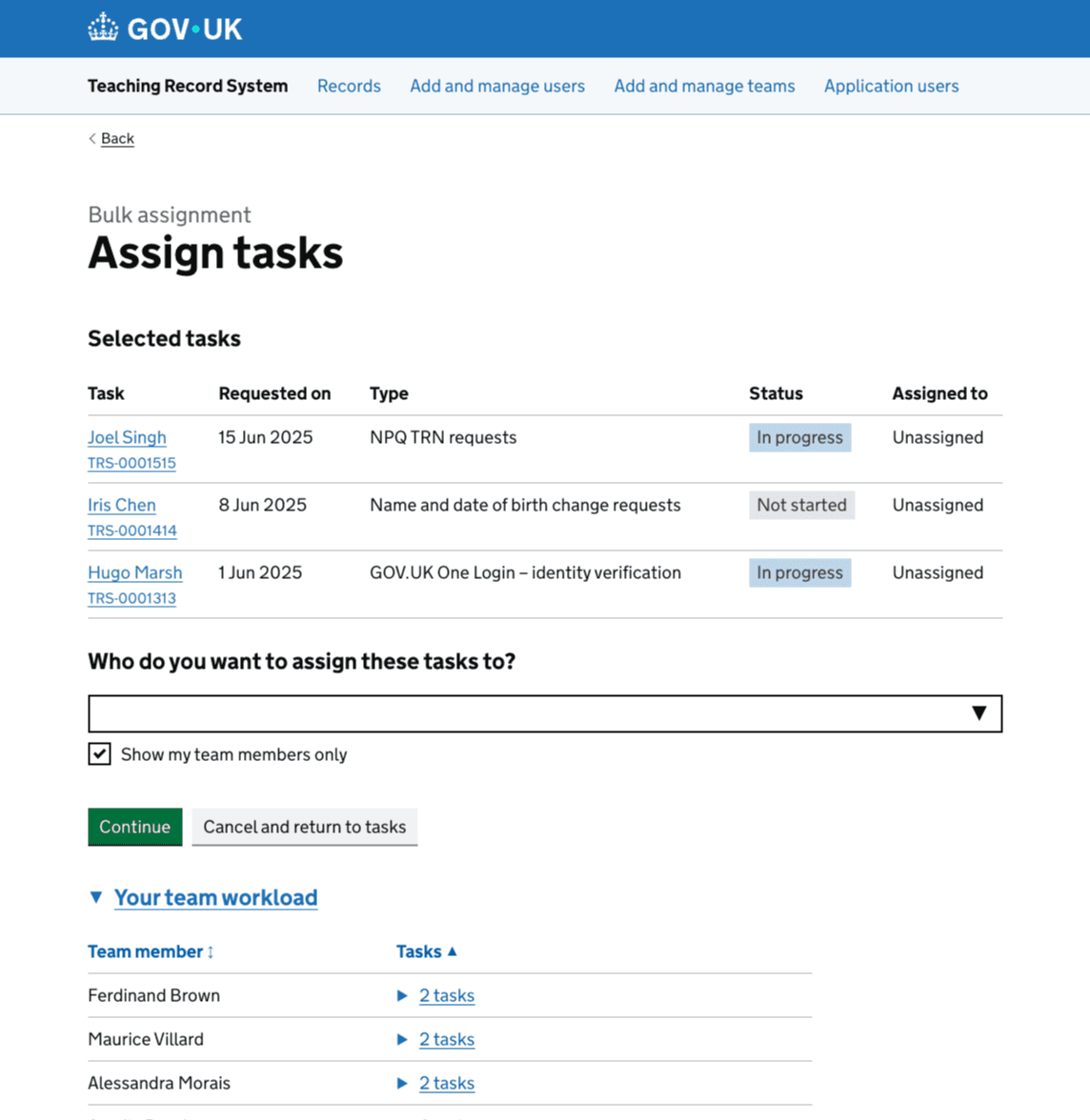
Showing allocation information next to assignment controls helps managers make informed decisions without leaving the page.
The page includes:
- a summary of selected tasks
- the current assignment status
- a user selection control
- workload information for potential assignees
Allocation summary
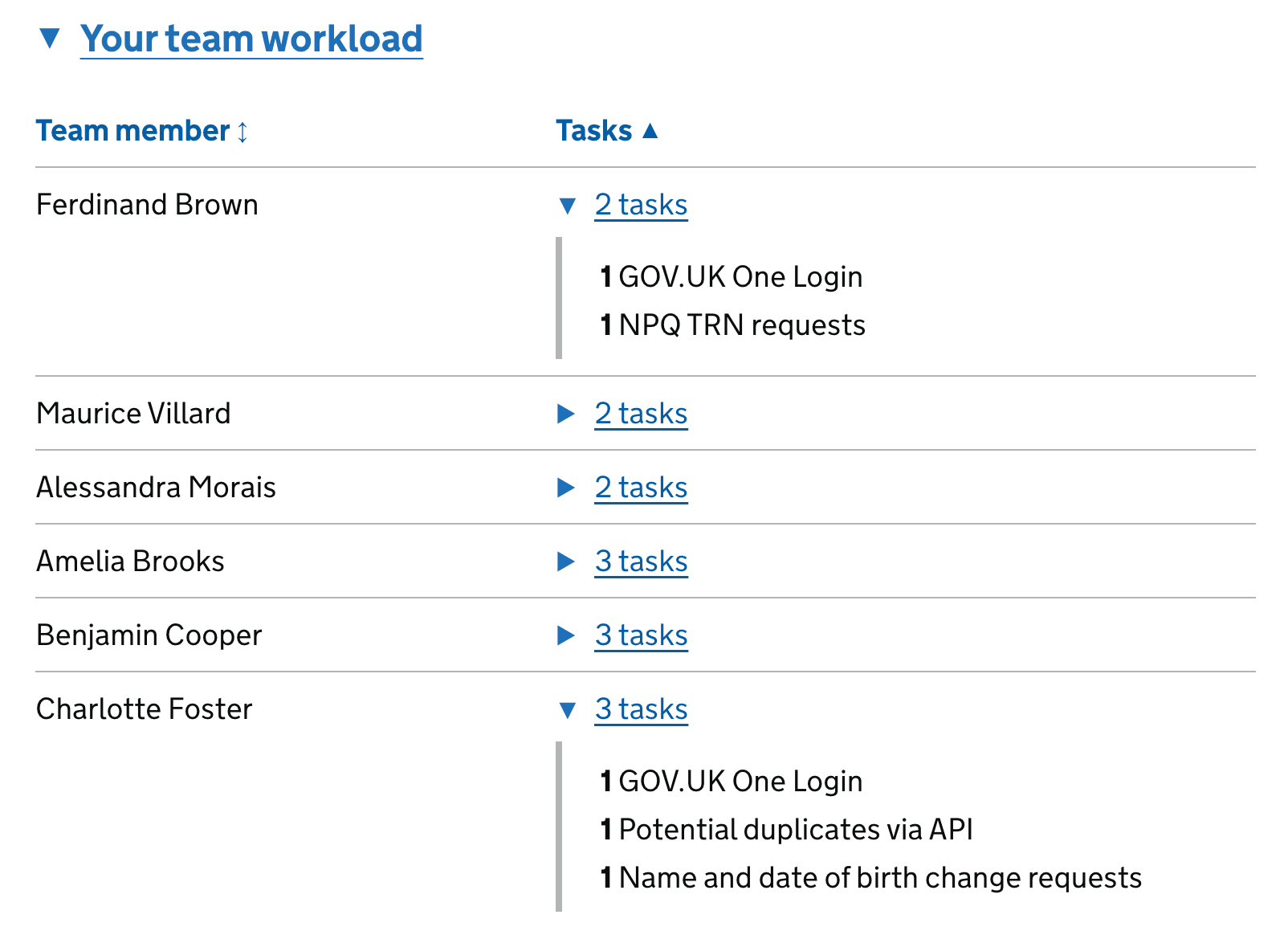
We added a ‘Your team workload’ component and improved the allocation summary to better support assignment decisions.
The allocation summary displays:
- console users
- the number of support tasks assigned to each user
- expandable task lists under each user, including task type
Managing teams
Introducing teams created a need for new administrative journeys. Administrators and managers can now:
- create teams
- edit team details
- delete teams
- view people on their team
We added a dedicated Teams list page as a central place to manage teams, with a separate navigation item. This makes a clearer distinction between managing users and managing teams.
Assigning users to teams
We created and iterated designs for:
- adding users to teams
- changing a user’s team
- updating user information
- managing user permissions
Improving the roles and permissions section
While reviewing the administration journeys, we saw an opportunity to improve the permissions experience. We iterated the ‘Roles and permissions’ section to make the information easier to scan and understand.
Initial explorations
Before agreeing to bring forward an MVP of access permissions, we explored two alternative approaches to help users view relevant colleagues and assign tasks more easily without team-based permissions.
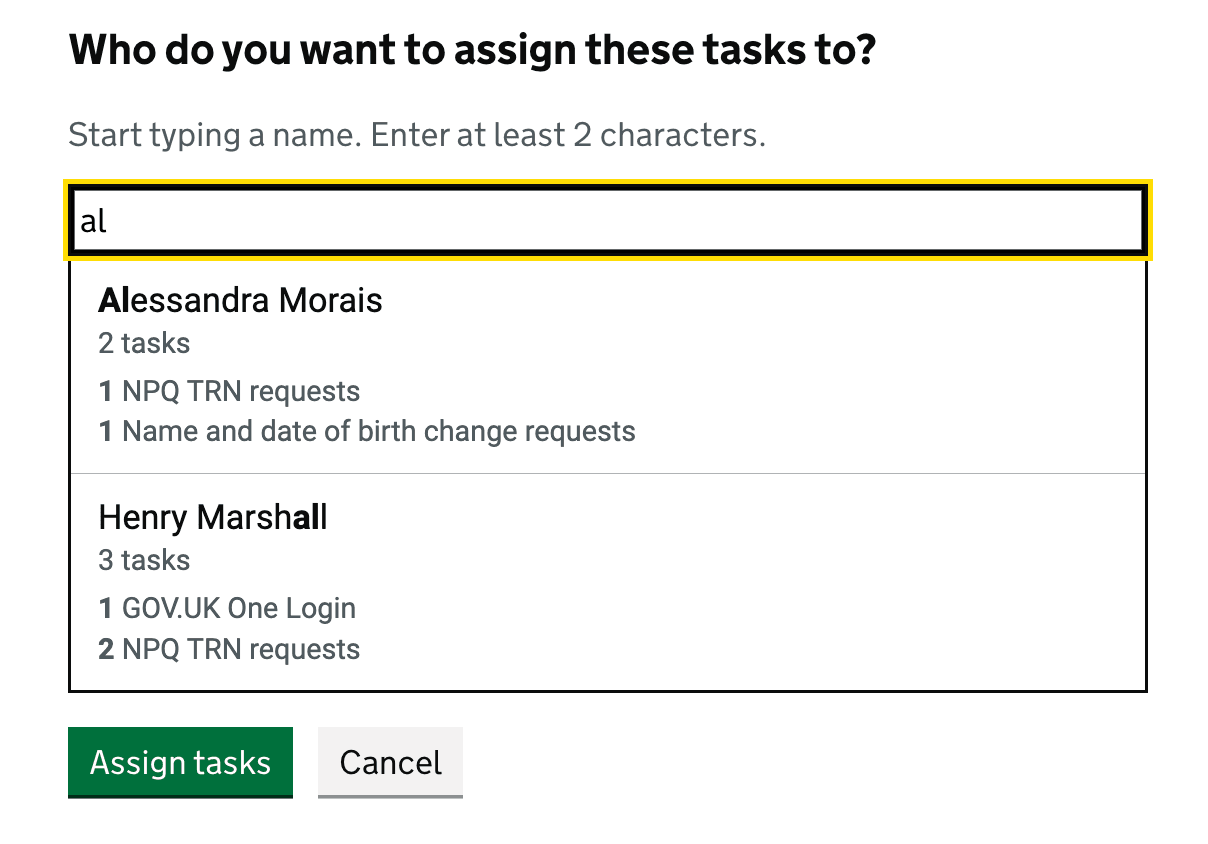
Iteration 1: Autocomplete with preview
We explored an autocomplete component that displays matching suggestions and each user’s task breakdown as managers type in the ‘Search for team members’ field
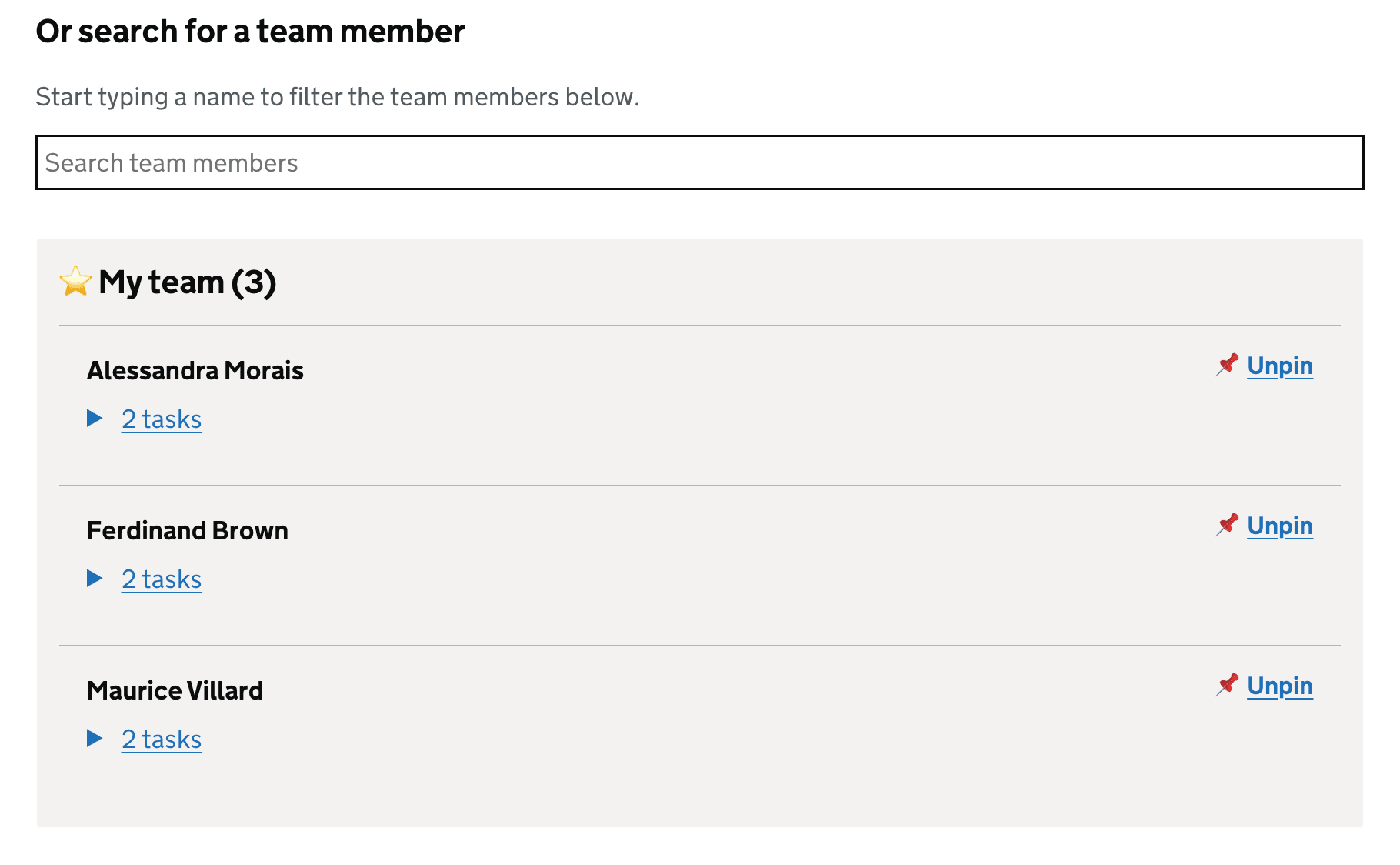
Iteration 2: 'My team' list
We explored allowing users to build their own ‘My team’ list by searching for and pinning users, so they only see colleagues relevant to them.